
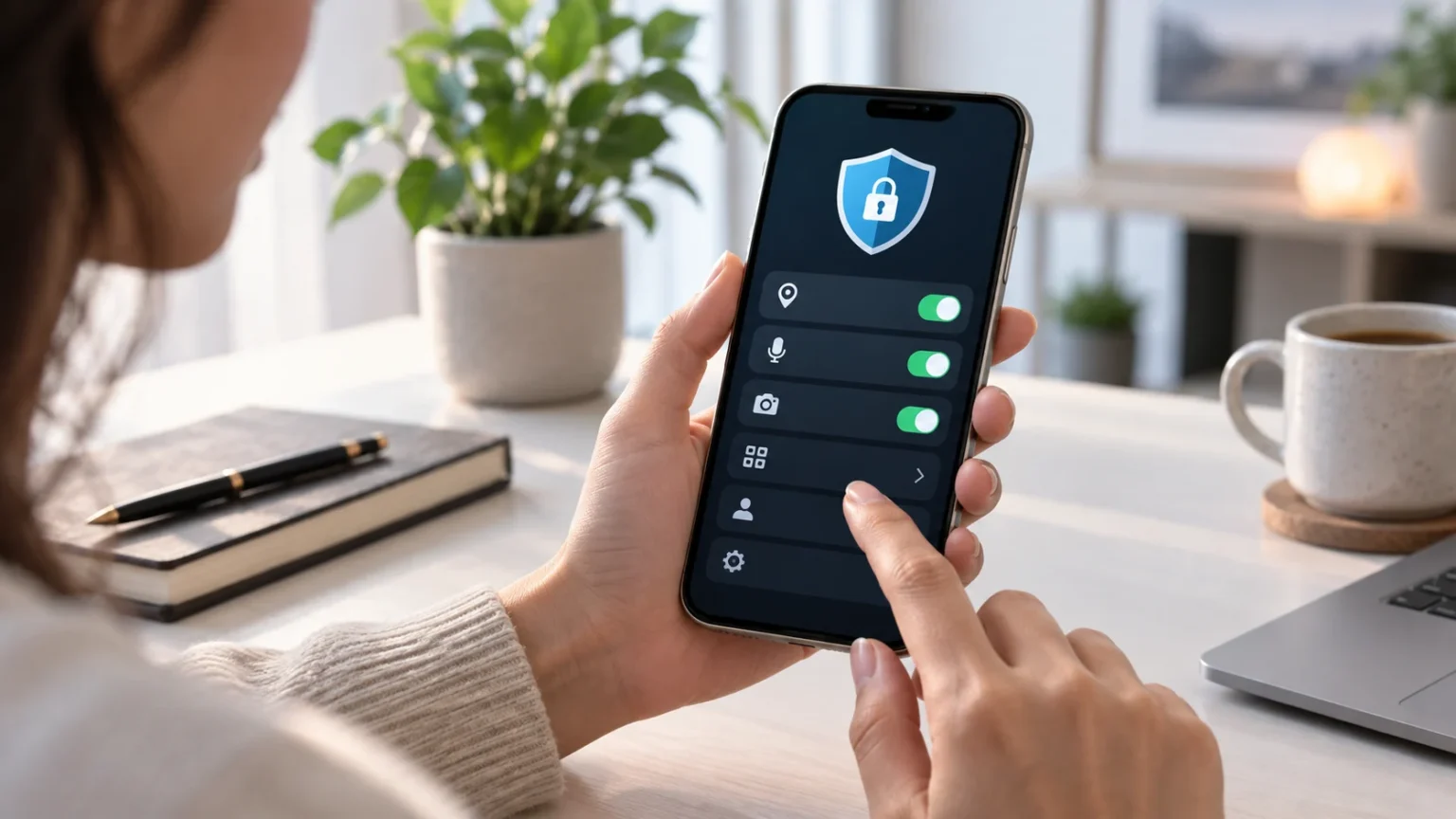

Your phone knows a surprising amount about you. It may store your location history, photos, contacts, messages, passwords, browsing activity, financial apps, microphone access, and details about the way you use different services. If privacy settings are left untouched, apps may collect more information than you actually need to share.
Improving mobile privacy does not require turning off every useful feature. The goal is to limit unnecessary access while keeping the functions you genuinely use. By reviewing app permissions, location settings, tracking controls, lock-screen options, browser privacy, and account security, you can significantly reduce how much personal data is exposed through everyday phone use.
Review Location Access for Every App
Location permission is one of the first privacy settings worth reviewing because many apps request it even when they do not need continuous access. Navigation, ride-sharing, and delivery apps may require your location, while games or simple utilities often do not. Limiting unnecessary location access reduces the amount of movement data shared with different services.
Choose options such as access only while using the app when that is enough for the feature you need. Avoid granting permanent background location access unless the application has a clear reason to use it. Some phones also allow you to share an approximate location instead of your exact position, which can provide additional privacy.
Review these permissions regularly because apps you once trusted may no longer be used often. A weather app installed months ago should not automatically keep constant access if you rarely open it. Removing location permissions from unused applications is a simple way to reduce long-term tracking without affecting important phone functions.
Limit Camera and Microphone Permissions
Camera and microphone access should be granted only to apps that genuinely need those features. Video calling, voice recording, and social media apps may have legitimate reasons to request them. However, a calculator, wallpaper app, or basic utility asking for microphone access deserves additional scrutiny before you approve the request.
Most phones allow you to review which apps currently have camera or microphone permissions. Remove access from applications you no longer use or do not fully trust. If an app only needs the camera occasionally, you can often allow access temporarily rather than leaving it enabled permanently.
Pay attention to privacy indicators that appear when the microphone or camera is active. Unexpected indicators can signal that an app is using hardware when you did not expect it to. While this does not automatically mean malicious activity, it gives you a reason to investigate which app is responsible and whether the permission is still necessary.
Reduce App Tracking and Advertising Personalization
Many mobile apps collect activity to personalize advertisements or measure how users behave across services. Privacy controls can help limit this tracking and reduce the amount of data used to build advertising profiles. Turning off unnecessary tracking does not eliminate all data collection, but it can reduce cross-app monitoring.
Check your phone’s privacy settings for advertising identifiers, personalized ads, or app-tracking controls. Disable tracking where you do not see a clear benefit from personalized advertising. You may still see ads afterward, but they are less likely to depend heavily on your behavior across multiple apps and websites.
You should also review the privacy settings inside major apps themselves. Social networks, search services, and shopping platforms often include separate controls for ad personalization and activity history. Adjusting both device-level and account-level settings provides stronger privacy than changing only one layer.
Control Which Apps Can Access Your Photos
Photo libraries can contain highly sensitive information, including family pictures, screenshots, documents, travel details, and images of identification or financial records. Apps that only need one image do not always require access to your entire library. Limiting photo permissions can reduce unnecessary exposure.
Many modern phones allow you to choose selected photos rather than providing full library access. This option works well when uploading a profile picture, sharing a receipt, or attaching one image to a message. Giving access only to the specific photos required keeps the rest of your library private.
Review full-library permissions for apps that you rarely use. If an application no longer needs continuous access, change the setting to selected photos or remove access completely. This is especially useful for editing apps, shopping tools, social platforms, and other services that may have requested broad photo permissions during setup.
Restrict Contact Access Where Possible
Your contact list contains information not only about you but also about other people. Phone numbers, email addresses, names, and relationship details may be available to any app with broad contact permission. That makes contact access more sensitive than it may initially appear.
Messaging and communication apps may require contact access to help identify people you know. Other applications may request it for referral programs, friend discovery, or marketing purposes. Consider whether those features are actually useful before sharing your entire address book with another company.
Remove contact access from apps that no longer need it. If your phone supports limited contact sharing, consider allowing only selected contacts instead of the entire list. Reducing unnecessary address-book access helps protect both your own privacy and information belonging to friends, family members, colleagues, and clients.
Hide Sensitive Information From the Lock Screen
Lock-screen notifications can reveal private information even when your phone is protected by a passcode. Messages, email previews, authentication codes, calendar events, and banking notifications may appear without requiring the device to be unlocked. Anyone nearby could potentially read information that was meant only for you.
Adjust notification settings so sensitive content remains hidden until the phone recognizes you or is unlocked. You may choose to hide previews entirely or change settings only for high-risk apps such as email, messaging, banking, and authentication services. This provides privacy without forcing you to disable useful notifications completely.
Lock-screen controls are especially important when you travel, work in public places, or regularly leave your phone on shared surfaces. A locked device still exposes information if every notification displays full message content. Hiding sensitive previews adds a simple privacy layer without changing how you use your apps once the device is open.
Strengthen Your Screen Lock and Authentication
A strong screen lock protects your phone when it is lost, stolen, or briefly left unattended. Avoid short or predictable PINs based on birthdays, repeated digits, or simple patterns. A longer passcode or strong device password provides better protection against someone attempting to guess their way into the phone.
Biometric authentication such as facial recognition or fingerprints can make strong device security easier to use every day. However, your passcode remains important because it acts as a backup authentication method. Keep it private and avoid entering it where strangers can easily watch over your shoulder.
Also shorten the automatic lock time if your phone remains unlocked for long periods after you stop using it. A device that stays open for several minutes can expose messages, apps, and account sessions if someone picks it up. Faster locking reduces this window without creating much inconvenience.
Improve Browser Privacy Settings
Your mobile browser can collect history, cookies, saved logins, permissions, and other information related to your online activity. Review privacy settings to control tracking, site permissions, and stored browsing data. Blocking unnecessary third-party tracking can reduce how extensively advertising systems follow your activity across websites.
Check which websites have permission to access your location, microphone, camera, or notifications. Remove permissions from sites you no longer recognize or use. Browser permissions are easy to forget because they may have been granted months earlier after a website displayed a quick pop-up during a visit.
Private browsing can help prevent local browsing history from being stored after a session, but it does not make you anonymous online. Websites and network providers may still observe certain activity. Use private browsing for appropriate situations, but combine it with stronger privacy settings and careful decisions about which websites receive your information.
Be Careful With Suspicious Messages and Permissions
Privacy settings cannot protect you if a scam convinces you to voluntarily share sensitive information. Fraudulent texts, emails, social messages, and pop-ups may ask for passwords, payment details, identity information, or urgent account verification. Learning how to spot online scams can help you avoid giving attackers information directly.
Be particularly careful with messages that pressure you to install an app, approve a device profile, or grant unusual permissions. Scammers may claim that these actions are required for a refund, package delivery, security update, or prize. Always verify the request through the official company or service before making privacy-related changes.
If a message asks you to enter credentials, open the official app or website independently rather than following the provided link. This prevents many fake login pages from collecting your information. Privacy depends not only on settings but also on how carefully you respond to unexpected requests.
Review Background App Activity
Some apps continue operating in the background even when you are not actively using them. Background access can be useful for messaging, navigation, or cloud synchronization, but it may also allow unnecessary activity and data collection. Reviewing these settings gives you more control over which applications remain active.
Disable background activity for apps that do not need constant updates. Games, occasional shopping apps, or rarely used utilities often work perfectly well without continuous background access. This can improve privacy while also reducing battery consumption and mobile data usage.
Keep background access enabled for services where it is genuinely useful, such as communication or navigation applications you depend on. The goal is not to disable everything. A selective approach prevents unnecessary processes while preserving the features that make your phone convenient and functional.
Review Bluetooth and Nearby Device Permissions
Bluetooth permissions can allow apps to communicate with headphones, cars, fitness devices, speakers, and other nearby technology. Some apps request nearby-device access for legitimate functions, while others may not need it. Reviewing these permissions can reduce unnecessary device discovery and background communication.
Only allow Bluetooth access when it clearly supports a feature you use. A music application connecting to speakers makes sense, while an unrelated app requesting nearby-device access should make you pause. Denying a permission initially is usually safer when you are unsure, because you can always enable it later.
Turn off Bluetooth when you do not need it for extended periods if that fits your routine. Modern phones have strong built-in protections, so Bluetooth should not be viewed as automatically dangerous. However, reducing unnecessary wireless connections is still a reasonable part of maintaining tighter mobile privacy.
Review Cloud Backup and Sync Settings
Cloud services can protect your data from loss, but they also determine which information leaves your device and where copies are stored. Review whether photos, messages, contacts, documents, app data, and device backups are being synchronized. Make sure you understand what information is uploaded automatically.
Disable synchronization for categories you do not want stored in the cloud, while keeping backups for information you cannot afford to lose. Privacy and backup security should be balanced rather than treated as opposites. A secure cloud account may offer valuable protection against device loss when it is configured carefully.
Protect the cloud account with a unique password and multi-factor authentication. Review trusted devices and recovery information regularly. If someone gains control of your cloud account, they may access data from multiple devices, making account security an essential part of mobile privacy.
Remove Unused Apps and Old Accounts
Unused applications create unnecessary privacy exposure because they may still retain permissions, stored information, or access to connected accounts. If you have not used an app for months and do not expect to need it again, consider removing it. Fewer applications make privacy settings easier to review.
Old online accounts can create similar problems. Services you stopped using years ago may still store your name, email address, photographs, payment history, or personal profile information. Deleting unnecessary accounts where practical reduces the number of companies holding information associated with your identity.
Before deleting an app, check whether you also need to close the account connected to it. Removing the application from your phone does not automatically erase information stored by the service. Account deletion and app removal are separate steps, and both may be necessary when reducing your digital footprint.
Make Privacy Reviews a Regular Habit
Phone privacy changes over time because new apps, accounts, permissions, and software features are constantly added. A setting that made sense last year may no longer fit the way you use your device today. Reviewing privacy controls every few months helps prevent old permissions from remaining active indefinitely.
Start with location, camera, microphone, contacts, photos, and tracking because these categories often contain the most sensitive permissions. Then review browser access, notification previews, connected devices, cloud settings, and installed applications. This process usually becomes faster once unnecessary permissions have already been removed.
Repeat the review whenever you replace your phone or install many new applications. Device migrations can transfer old settings and permissions that you may have forgotten about. A fresh privacy check gives you the opportunity to decide again which apps genuinely deserve access to your personal information.
Conclusion
The best privacy settings to change on your phone are the ones that reduce unnecessary access without making useful features difficult to use. Location, microphone, camera, contacts, photos, tracking, and lock-screen notifications deserve particular attention. Reviewing these settings gives you greater control over what information applications and people can see.
Privacy also depends on strong authentication, browser settings, cloud security, and careful online behavior. A secure phone can still expose information if you enter passwords into fraudulent websites or grant suspicious apps broad permissions. Technical controls work best when they are supported by cautious decisions and regular security habits.
You do not need to adjust every setting at once. Start with your most sensitive permissions, remove unused apps, protect important accounts, and repeat the review every few months. Small changes can significantly reduce unnecessary data collection while allowing your phone to remain convenient, connected, and useful.
FAQs
What privacy setting should I change first on my phone?
Start with location permissions because many apps request more access than they need. Then review microphone, camera, contacts, photos, tracking, and lock-screen notification settings.
Should I turn off app tracking?
Turning off unnecessary app tracking can reduce cross-app profiling and personalized advertising. It may not stop every form of data collection, but it gives you greater control over how your activity is used.
Is it safe to give apps access to all my photos?
Only when the app genuinely needs full access. If your phone allows selected-photo permissions, use that option when you only need to upload or edit a small number of images.
Should I hide notifications on my lock screen?
Yes, especially for email, messaging, banking, and authentication apps. Hiding message previews prevents people nearby from seeing sensitive information while your phone is still locked.
How often should I review phone privacy settings?
Review your privacy settings every few months and after installing many new apps or changing phones. Regular checks help remove outdated permissions and identify applications that no longer need sensitive access.