
How to Use a Router: A Simple Guide for Beginners
Learning how to use a router may sound technical, but most modern home routers are designed to make setup relatively straightforward. A router connects your phones, laptops, TVs, gaming consoles, smart devices, and other equipment to your home network while directing internet traffic between those devices and your internet connection.
For most homes, setup involves connecting the router to a modem or internet terminal, turning it on, opening its mobile app or administration page, and creating a Wi-Fi network. Once those basic steps are complete, wireless devices can connect using the network name and password you choose.
Using a router properly involves more than getting Wi-Fi working. Placement, security settings, frequency bands, firmware updates, Ethernet connections, guest networks, and basic troubleshooting can all affect the reliability and safety of your internet connection.
The good news is that you do not need to understand advanced networking to manage a home router successfully. This guide explains router setup for beginners step by step, including what each port does, how to connect to Wi-Fi, how to improve coverage, and how to protect your network.
What Is a Router and What Does It Do?
A router is a networking device that directs data between different devices and networks. In a typical home, it creates a local network for your computers, smartphones, televisions, printers, security cameras, and other connected devices while giving them access to the internet.
When you visit a website, your phone sends a request through the router. The router forwards that traffic toward your internet service provider and later directs the returning information back to the correct device. It performs this process continuously for every connected device.
Most home routers also function as wireless access points, allowing devices to connect through Wi-Fi instead of physical cables. Many models include several Ethernet ports as well, giving you the option to create faster or more stable wired connections for selected devices.
Modern routers may include additional features such as parental controls, guest Wi-Fi, device management, firewalls, VPN features, traffic prioritization, mesh networking support, and automatic firmware updates. Exactly which features you have depends on the manufacturer and router model.
Router vs Modem: What Is the Difference?
A modem and router perform different jobs, even though people often use the words interchangeably. The modem connects your home to your internet service provider, while the router distributes that connection between devices inside your home.
With cable internet, for example, the modem receives the internet connection from the provider and usually sends it through an Ethernet cable. Your router receives that connection through its WAN or Internet port and creates the wired and wireless network used by your devices.
Fiber internet may use an optical network terminal, commonly called an ONT, instead of a traditional modem. The router still performs a similar function by connecting your local home network to the internet connection supplied by that equipment.
Some internet providers supply a single device that combines modem and router functions. This is often called a gateway. If you have a gateway, you may not need a separate router unless you want better Wi-Fi coverage, more features, or greater control over your network.
What Do You Need Before Setting Up a Router?
Before beginning your Wi-Fi router setup, make sure your internet service is active. A perfectly configured router cannot provide internet access if your modem, fiber terminal, or broadband service is not connected correctly.
You will normally need the router, its power adapter, and at least one Ethernet cable. Your internet equipment may already include the necessary cable, but having an additional Ethernet cable can be useful if you want to connect a computer directly during setup.
Check the router itself for a label containing information such as its default Wi-Fi network name, setup address, QR code, or temporary password. Many newer routers use a smartphone application that guides you through the entire installation process.
It is also helpful to know whether your internet provider requires specific settings. Most home connections configure themselves automatically, but some providers may require account credentials, VLAN information, or another setting before the router can establish internet access.
How to Connect a Router to Your Internet
Start by placing the router near your modem or internet terminal for the initial setup. Locate the router port labeled WAN, Internet, or sometimes with a globe icon. This port is normally separated visually from the LAN Ethernet ports.
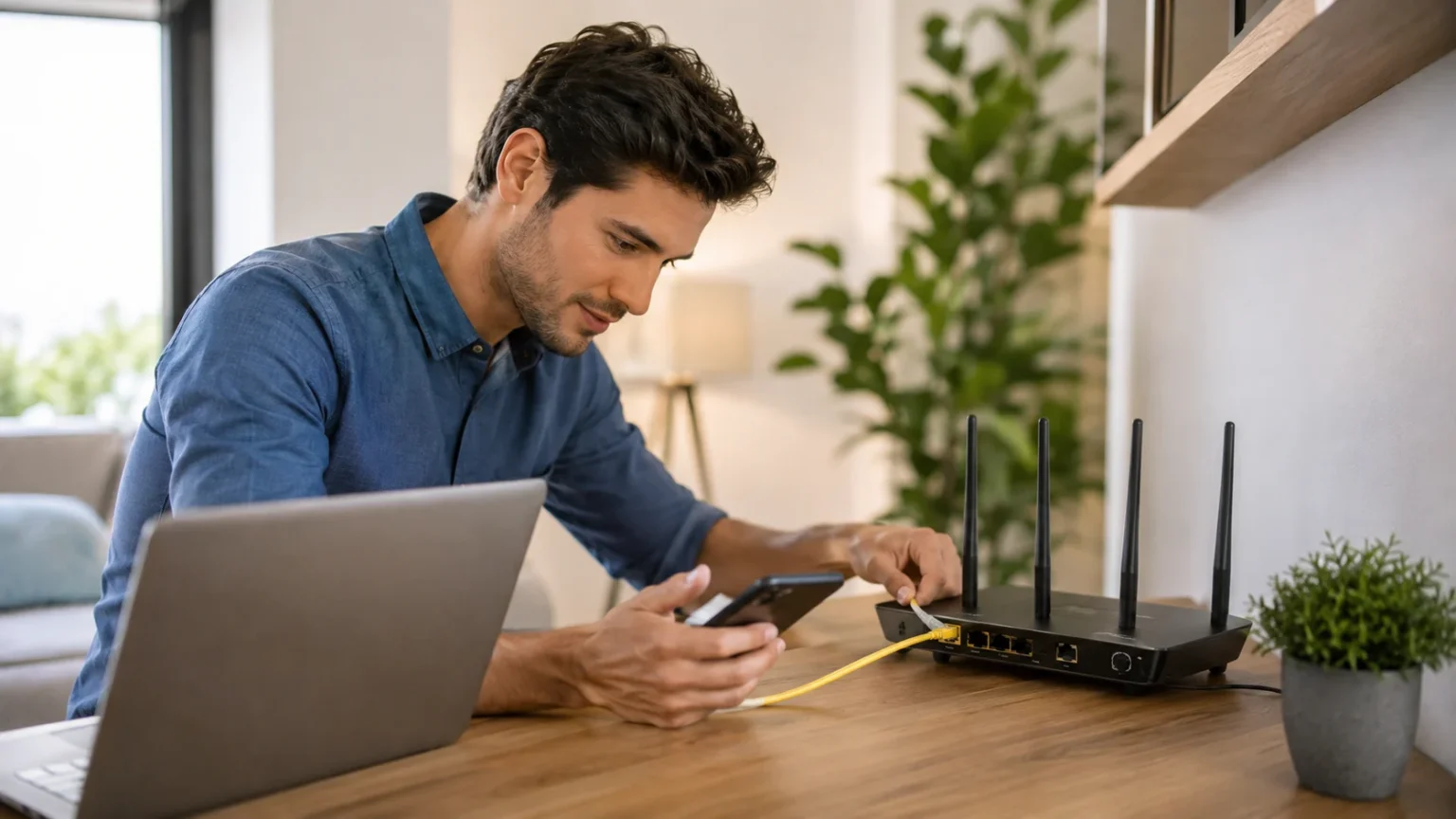
Connect one end of an Ethernet cable to the modem or ONT and the other end to the router’s Internet or WAN port. Make sure the connectors click firmly into place, because a loose cable can make the internet connection appear completely unavailable.
Connect the router’s power adapter and turn the router on. If your modem was already running, your router may establish a connection automatically. Some setups work more reliably after restarting the modem and router in the order recommended by the manufacturer or internet provider.
Wait for the router’s status lights to stabilize. The exact colors and symbols vary between brands, but there are typically indicators for power, internet connectivity, Wi-Fi, and Ethernet activity. Consult the router’s instructions if an internet indicator remains red, orange, or otherwise shows an error.
How to Set Up Your Wi-Fi Network
Once the router is powered on, connect your phone or computer to the temporary Wi-Fi network printed on the router label or shown in its setup instructions. Some routers instead ask you to scan a QR code or connect through the manufacturer’s app.
The setup process will normally ask you to create a Wi-Fi network name, also known as an SSID. Choose something easy for members of your household to recognize without including sensitive information such as your full name, apartment number, or password.
Next, create a strong Wi-Fi password. A longer, unique password or passphrase is generally easier to secure than a short predictable password. Avoid using obvious combinations such as your phone number, birth date, address, or simple strings like “12345678.”
After saving the settings, your router may restart its wireless network. The temporary Wi-Fi connection will disappear, and you can reconnect your devices using the new Wi-Fi name and password you created.
How to Log In to Your Router Settings
Router settings are usually managed through a smartphone application or a router administration page opened in a web browser. The manufacturer may provide an address, local hostname, or gateway IP address that leads to the administration interface.
If you are using a browser-based interface, make sure you are connected to the router through Wi-Fi or Ethernet. Enter the correct router management address in the browser’s address bar rather than typing it into a search engine.
The router may ask for an administrator username and password. This administrator password controls router settings and is different from the password your family uses to connect to Wi-Fi, although some routers simplify management through a linked account or app.
If your router still uses a default administrator password, change it to a strong unique credential. Anyone who gains administrative access may be able to alter Wi-Fi settings, DNS configuration, connected-device permissions, security options, and other important parts of your network.
How to Connect Devices to Your Router
To connect a phone, tablet, laptop, smart TV, or other wireless device, open that device’s Wi-Fi settings. Wait for the available networks to appear, select the SSID you created, and enter your Wi-Fi password.
Once connected, the device should receive network settings automatically from the router. You normally do not need to manually configure an IP address, gateway, or DNS server for ordinary home devices because the router handles those tasks.
Some devices can also connect by scanning a Wi-Fi QR code generated by your router or phone. This is convenient when you want to connect trusted household members without repeatedly typing a long password.
Remember that every connected device uses some portion of your network capacity. Streaming televisions, cloud backups, game downloads, security cameras, video calls, and software updates can all use bandwidth simultaneously and may affect performance when your internet connection is limited.
How to Use an Ethernet Cable With Your Router
Wi-Fi is convenient, but an Ethernet connection can provide greater stability for devices that remain in one place. Desktop computers, gaming consoles, smart TVs, network storage devices, and workstations are common candidates for wired networking.
Find one of the router’s LAN ports, which are normally numbered and located beside the WAN port. Connect one end of an Ethernet cable to a LAN port and the other end to the Ethernet port on your computer or other device.
In most cases, the connection begins working automatically. The router assigns network settings to the wired device just as it does for Wi-Fi clients, so no complicated configuration should be necessary.
Ethernet can also reduce unnecessary wireless congestion. If several stationary devices can be wired conveniently, moving them off Wi-Fi leaves more wireless capacity available for phones, tablets, laptops, and other devices that actually need mobility.
Where Should You Place Your Wi-Fi Router?
Router placement can make a major difference to Wi-Fi coverage. Radio signals weaken as they travel through walls, floors, furniture, appliances, and other obstacles, so hiding your router in the most distant corner of the house can reduce performance.
Place the router in a relatively central, open location when possible. A router positioned near the middle of the home generally has a better chance of reaching rooms in multiple directions than one placed beside an exterior wall.
Avoid placing the router directly behind large metal objects, inside thick cabinets, or on the floor if another practical option exists. Elevating it on a shelf or table and leaving some open space around it can often improve wireless propagation.
The perfect location depends on your home’s layout. Large houses, multiple floors, thick masonry walls, or long distances may require additional access points or a mesh Wi-Fi system rather than expecting one router to provide equally strong coverage everywhere.
Understanding 2.4 GHz, 5 GHz and 6 GHz Wi-Fi
Modern routers may broadcast on several frequency bands. 2.4 GHz Wi-Fi generally provides longer-range coverage and can travel through obstacles relatively well, although it typically has less available bandwidth and faces more interference from neighboring networks and devices.
The 5 GHz band generally provides higher performance and more available channels but does not reach as far through walls as 2.4 GHz. It is often useful for laptops, phones, streaming devices, and gaming systems positioned reasonably close to the router.
Some newer routers also support 6 GHz Wi-Fi, which offers additional spectrum and can support modern Wi-Fi technologies with less congestion when compatible devices are used. Its effective range can be more limited by walls and distance.
Many routers automatically combine bands under one Wi-Fi name and steer compatible devices toward an appropriate connection. If your router supports band steering, leaving the system automatic is often simpler than manually choosing between separate network names.
How to Secure Your Wi-Fi Router
Start by using modern Wi-Fi encryption. WPA3 is preferable when your router and devices support it, while WPA2 remains widely used for compatibility with older equipment. Avoid leaving your network open or using outdated security modes when better options are available.
Use a strong Wi-Fi password and a separate strong administrator password. These credentials protect different things: the Wi-Fi password controls network access, while the administrator credential protects the router’s configuration interface.
Update the router’s firmware regularly or enable automatic updates if your model provides that option. Firmware updates can fix security vulnerabilities, improve compatibility, resolve bugs, and sometimes improve router performance.
Review optional features you do not use. Remote administration, unnecessary port forwarding, or convenience features that increase exposure may not need to remain enabled. Keeping configuration simple and using only features you understand can reduce unnecessary security risks.
How to Create a Guest Wi-Fi Network
A guest Wi-Fi network creates a separate wireless network for visitors. Instead of giving guests the password used by your personal devices, you can provide access to the guest network and change its password later without reconnecting everything in your home.
Open the router’s application or administration interface and look for Guest Network or Guest Wi-Fi. Enable the feature, create a recognizable network name, and set a strong password rather than leaving the guest network completely open.
Many routers allow you to prevent guest devices from communicating with computers, storage devices, printers, and other equipment on your main network. Enabling this separation can provide an additional layer of privacy.
A guest network can also be useful for certain smart-home devices, depending on how your router handles network isolation. However, some smart devices need to communicate with phones or hubs on your primary network, so check compatibility before separating them.
How to Change Your Wi-Fi Name or Password
Log in to the router’s settings and find the Wireless, Wi-Fi, or Network section. Your current SSID and wireless password should appear there, although the exact menu name differs between router manufacturers.
Enter the new Wi-Fi name or password and save the settings. The wireless network may restart immediately, which will temporarily disconnect every device using the previous credentials.
Reconnect your phone, laptop, TV, security cameras, smart speakers, and other devices using the new password. Remember that smart-home equipment hidden around the house can easily be forgotten during a password change.
Changing your password periodically is not necessary simply for the sake of changing it when you already use a strong unique credential, but you should replace it if you suspect unauthorized access or have shared it with someone who should no longer use your network.
How to See Who Is Connected to Your Router
Most routers include a connected devices list inside their app or administration interface. It may show device names, IP addresses, MAC addresses, connection types, and whether each device is currently online.
The list is useful for understanding your network and troubleshooting performance. You may discover that a television is downloading an update, a security camera is constantly uploading data, or an old device is still connected even though you rarely use it.
Do not panic if some device names look unfamiliar. Routers occasionally identify devices only by manufacturer or hardware address, and phones may use privacy features that make identification less obvious.
If you genuinely find an unauthorized device, change your Wi-Fi password and confirm that your network is using appropriate encryption. You can then reconnect only the devices you trust using the new credentials.
How to Improve Slow Wi-Fi
Begin with the simplest step: test your internet speed near the router and then again in the area where performance feels poor. If speeds are good beside the router but weak in another room, Wi-Fi coverage rather than the internet connection itself may be the problem.
Move the router to a more central and open position if possible. Walls, floors, metal objects, and long distances can weaken wireless signals, so relocating the router can sometimes provide a larger improvement than changing complicated settings.
Try a wired connection on one device. If Ethernet is fast while Wi-Fi is slow, the wireless network needs attention. If both are slow, the problem may involve your internet connection, modem, router processing, or the service provider.
For larger homes, consider a mesh Wi-Fi system or additional wired access points. Wi-Fi extenders can help in some situations, but a well-designed mesh or wired access-point arrangement generally provides more predictable coverage when large areas need service.
How to Restart a Router Correctly
Restarting a router can resolve temporary problems involving connectivity, device associations, software processes, or performance. The easiest method is to use the router’s restart option in its application or settings page when the interface remains accessible.
You can also disconnect the router’s power cable, wait briefly, and reconnect it. Give the device enough time to complete its startup process before deciding that the connection has failed.
If you have a separate modem and router, the order may matter during troubleshooting. Your internet provider or equipment manufacturer may recommend restarting the modem first and allowing it to establish service before restarting the router.
Do not confuse restarting a router with factory resetting it. Restarting keeps your settings, while a factory reset erases custom configuration and usually returns Wi-Fi names, passwords, and other settings to their original defaults.
When Should You Factory Reset a Router?
A factory reset should generally be reserved for situations where ordinary troubleshooting has failed, the router configuration has become unusable, you have forgotten necessary administrator credentials, or you are intentionally starting the setup from scratch.
Most routers have a recessed Reset button that must be held for a specified period while the device is powered on. The exact method varies, so follow the manufacturer’s instructions rather than repeatedly pressing buttons at random.
After the reset, custom settings are normally erased. Your Wi-Fi name, Wi-Fi password, guest network, parental controls, port forwarding, DNS choices, and other personalized settings may all need to be configured again.
Before performing a router factory reset, make sure you know how the internet connection will be restored. If your provider requires specific account information or network settings, have those details available before wiping the router’s configuration.
How to Update Router Firmware
Router firmware is the software that controls the router itself. Manufacturers release updates to address security problems, improve reliability, introduce features, and maintain compatibility with newer devices.
Open the router’s app or administration page and look for a section labeled Firmware, Software Update, System, Maintenance, or Administration. Some routers automatically check for updates, while others require you to start the update manually.
Do not unplug the router while a firmware update is being installed. Interrupting the process can potentially cause serious problems, so allow the router to finish and restart normally.
Older routers that no longer receive firmware security updates deserve additional consideration. Networking standards, security expectations, and internet-connected devices continue evolving, so replacing an unsupported router can sometimes be safer and more practical than keeping outdated hardware indefinitely.
How to Use Parental Controls on a Router
Many home routers include parental-control features that allow you to manage when particular devices can access the internet. You may be able to create schedules, pause connectivity, filter certain categories of websites, or view basic usage information.
Open the router’s management application and identify the devices used by family members. Some systems let you create profiles containing several devices, such as a child’s tablet, phone, and gaming console.
Use these controls as practical household tools rather than assuming they provide perfect content filtering. Websites, apps, encryption technologies, mobile data, VPNs, and changing online services can limit what router-level controls can see or block.
For families, internet safety works best when technical controls are combined with age-appropriate conversations, device settings, platform protections, and clear expectations about how and when connected devices are used.
What Is Port Forwarding on a Router?
Port forwarding tells your router to direct specific incoming internet traffic toward a particular device inside your network. It is sometimes used for self-hosted servers, gaming, remote-access applications, cameras, and specialized networking tasks.
Most ordinary home users do not need to configure port forwarding manually. Modern applications frequently establish connections without requiring permanent inbound ports to be opened.
Opening ports unnecessarily can increase your network’s exposure because services inside the home become reachable from the internet. Only create forwarding rules when you understand why they are necessary and how the destination device is secured.
If an application tells you to enable router port forwarding, follow reputable instructions specific to that service and router model. Remove rules when they are no longer required rather than allowing forgotten exceptions to accumulate over time.
Common Router Problems and How to Fix Them
If Wi-Fi appears but the internet does not work, check whether the modem or internet terminal has service. Restarting equipment and checking the Ethernet cable between the modem and WAN port can resolve many straightforward connection problems.
If the Wi-Fi network disappears entirely, confirm that the router has power and wireless service is enabled. A hardware Wi-Fi button, scheduled wireless setting, failed firmware process, or temporary software issue can sometimes disable the wireless network.
If only one device cannot connect, the router may not be the problem. Forget the Wi-Fi network on that device, reconnect with the correct password, restart the device, and check whether other phones or computers connect normally.
When every device experiences the same slow internet or connection drops, test with Ethernet and compare results. This helps distinguish a Wi-Fi coverage problem from a router, modem, or internet-provider problem before you begin changing unrelated settings.
Mistakes to Avoid When Using a Router
Avoid leaving the router with weak default administrator credentials. A home router controls an important part of your network, and unauthorized administrative access can allow someone to change settings that affect every connected device.
Do not hide the router inside a closed cabinet simply because networking equipment is unattractive. Poor placement can weaken Wi-Fi and may also reduce ventilation around hardware that generates heat while operating continuously.
Avoid installing firmware downloaded from unofficial sources. Router firmware should come from the manufacturer or approved update mechanism unless you deliberately understand and choose a legitimate alternative firmware project.
Finally, do not change advanced settings simply because an online optimization guide recommends them. DNS, channels, MTU, firewall settings, NAT, IPv6, QoS, and other networking features can be useful, but unnecessary modifications may create more problems than they solve.
The Bottom Line: How to Use a Router
Learning how to use a router starts with understanding its basic job: connecting your devices to one another and providing access to the internet. Once the router is connected to your modem or internet terminal, most of the remaining setup happens through an app or administration page.
Create a recognizable Wi-Fi name, use a strong unique password, and select modern wireless security such as WPA3 when your equipment supports it. Keep the router’s administrator credentials private and install firmware updates so the device continues receiving security and reliability improvements.
Place the router centrally and away from major obstructions whenever possible. Use Ethernet for stationary devices that benefit from stability, and consider mesh Wi-Fi or additional access points when one router cannot adequately cover the entire home.
You do not need to master advanced networking to run a reliable home network. Connect the equipment correctly, secure it, keep its software current, place it intelligently, and learn a few basic troubleshooting steps. Those habits will solve most everyday router needs.
Frequently Asked Questions About Using a Router
How do I use a Wi-Fi router for the first time?
Connect the router’s WAN or Internet port to your modem or internet terminal, power it on, and follow the manufacturer’s app or setup page. Create your Wi-Fi name and a strong password before connecting devices.
Do I need a modem with a router?
It depends on your internet service. Cable connections normally require a modem, while fiber may use an ONT. Some internet providers supply one gateway device that combines modem and router functions.
How do I connect my phone to a router?
Open Wi-Fi settings on your phone, select your router’s network name, and enter the Wi-Fi password. Once connected, your phone should automatically receive the network settings it needs.
Where is the best place to put a Wi-Fi router?
Place it in a central, open, elevated position when possible. Avoid hiding it behind large metal objects, inside closed cabinets, or in distant corners that make signals travel through unnecessary walls.
Should I turn my router off every night?
You generally do not need to turn a modern router off every night. Routers are designed for continuous operation, although an occasional restart can help resolve temporary connectivity problems.