
How to Stream Crunchyroll on Discord Without Audio or Black-Screen Problems
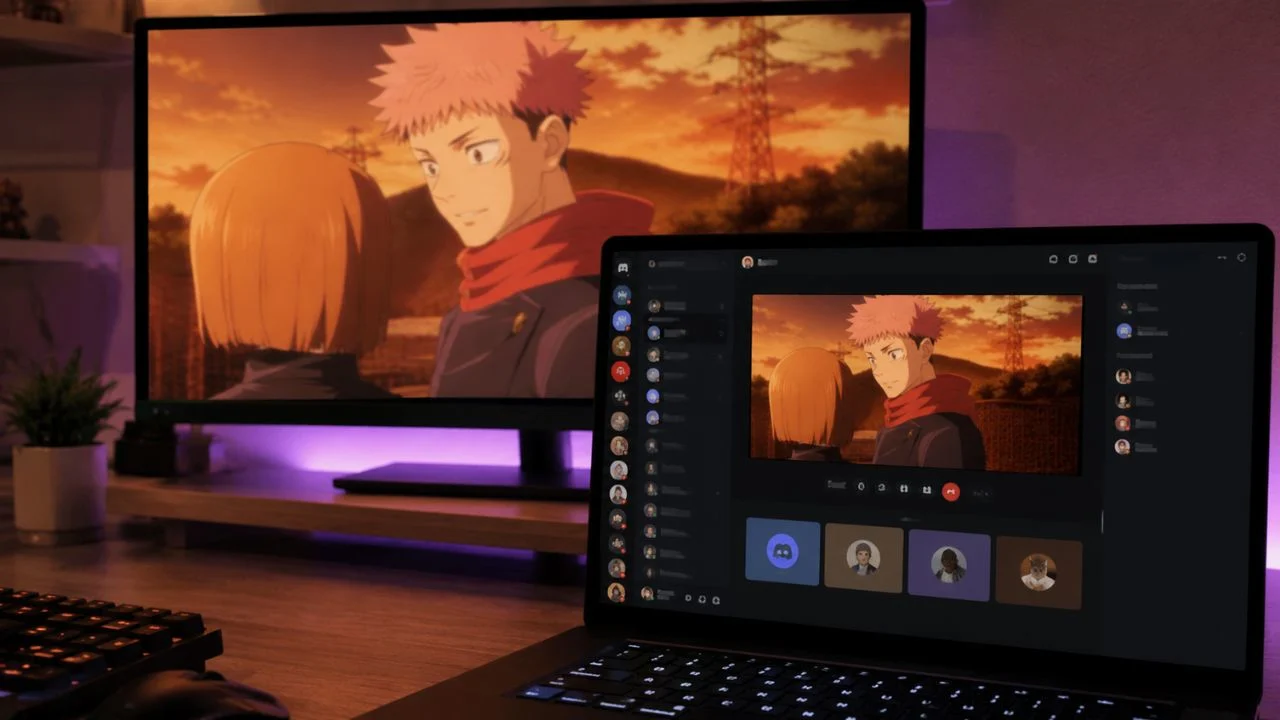
Watching anime with friends can be more enjoyable when everyone can talk, react and discuss each episode together. Discord’s screen-sharing feature makes private group viewing convenient because you can share an application window while remaining connected to a voice channel, direct message or group call.
However, streaming Crunchyroll on Discord is not always as simple as selecting your browser and pressing play. You may experience a black screen, missing audio, low video quality, delayed subtitles or stuttering playback. Streaming-platform protections and device restrictions can also prevent particular content from being captured.
You should use Discord screen sharing only for personal, private viewing with close friends and within the permissions provided by Crunchyroll. A private get-together is different from broadcasting an episode to a public server, club, classroom, paying audience or large online community.
This guide explains how to stream Crunchyroll on Discord using a Windows PC, Mac, browser or mobile device. It also covers Discord Go Live settings, audio problems, lag, subtitles, privacy and safer alternatives when protected video cannot be shared.
Can You Stream Crunchyroll on Discord?
Discord allows users to share an individual application window or an entire computer screen during a voice call. This means you can technically select the browser or application displaying Crunchyroll and attempt to broadcast it to people connected to your private Discord call.
Whether the actual anime video appears depends on the operating system, browser, Crunchyroll player and content-protection settings. Some streaming services prevent their video from being captured, which may leave viewers seeing the browser interface, subtitles or controls while the programme area remains black.
A black screen does not necessarily mean that Discord is broken. It may indicate that protected video playback is working as intended. Avoid tools, extensions or setting changes designed specifically to defeat digital rights management or protected-content restrictions.
The most dependable lawful alternative is for each participant to open the same episode through their own legitimate Crunchyroll access. Everyone can remain in a Discord voice channel, count down together and synchronise playback without broadcasting the protected video itself.
What You Need Before Starting
Install the latest version of Discord on your computer or mobile device. The desktop application generally provides better control over application windows, stream quality and audio than a browser-based Discord session. Updating also helps maintain compatibility with Discord’s current privacy and encryption requirements.
You also need access to the Crunchyroll episode you plan to watch. Sign in to the correct profile and confirm that the title is available in your region. Regional licensing can prevent a friend in another country from opening the same anime, even when that person has a valid subscription.
Join a private Discord server voice channel, direct-message call or group direct-message call. In a server, your role must have permission to use video and screen sharing. Ask a server administrator to enable the Video permission when the screen-sharing button is unavailable.
A stable internet connection is essential because your computer must receive the Crunchyroll video and upload the Discord stream simultaneously. Close unnecessary downloads, cloud backups and high-bandwidth applications before starting. A wired Ethernet connection may be more reliable than a weak or crowded Wi-Fi signal.
How to Stream Crunchyroll on Discord on Windows
Open the Discord desktop application and join the private voice channel or call where your friends are waiting. Leave Discord running, then open Crunchyroll in a supported browser and load the episode. Pause the video before it begins so everyone can join first.
Return to Discord and select the Share Your Screen or screen-streaming icon near the voice controls. Discord will display the applications and screens available for sharing. Choose the browser window containing Crunchyroll instead of sharing your entire desktop whenever possible.
Check that sound sharing is enabled, then select your desired resolution and frame rate. Standard Discord accounts can use the normal streaming options, while eligible Nitro subscriptions may provide higher resolutions or frame rates. Select Go Live when the preview shows the correct window.
Ask one friend to confirm that the browser, video and sound are visible. Start the episode only after completing this test. Keep private messages, account details and other sensitive windows closed so they cannot accidentally appear if you switch away from Crunchyroll.
How to Stream Crunchyroll on Discord on a Mac
Open Crunchyroll in your preferred supported browser and prepare the episode. Launch the Discord desktop app, enter a voice channel or call and select the screen-sharing icon. Choose the specific browser window rather than displaying everything on your Mac.
The first time you share your screen, macOS may ask you to allow Discord to record the screen. Open System Settings, enter Privacy & Security, locate the screen-recording controls and enable permission for Discord. Restart the application if macOS requests it.
Application audio sharing works best on macOS 13 or later. Keep both macOS and Discord updated when friends can see the screen but cannot hear the episode. Older operating-system versions may not provide the audio-capture support required by the current Discord application.
Select the available quality settings and begin the stream. Ask another participant to test the audio before starting the episode. When protected video appears black, do not install unknown capture software or attempt to disable content protection; use synchronised individual playback instead.
How to Stream Through a Discord Voice Channel
Open the server containing the friends you plan to watch with and join an appropriate voice channel. Only invite people who are part of your private viewing group. Avoid broadcasting copyrighted episodes through publicly accessible channels or communities where anyone can enter.
Once connected, select the screen-streaming icon near your voice status. Choose the Crunchyroll browser window and review the preview carefully. Selecting one application provides better privacy because notifications, desktop icons and unrelated windows are less likely to appear.
Set the stream resolution and frame rate based on your internet connection. A stable 720p stream is usually more enjoyable than a higher-resolution stream that repeatedly freezes. Anime generally remains watchable at 30 frames per second because most scenes do not require gaming-level frame rates.
Press Go Live, and Discord will display a stream tile inside the voice channel. Friends can choose Watch Stream to join. Use the voice channel to coordinate playback, discuss the episode and pause when someone temporarily loses connection.
How to Stream Crunchyroll in a Discord DM
Open the direct-message conversation with the friend you want to watch with. Start a voice or video call using the controls at the top of the conversation. Wait until the other person joins before opening the screen-sharing menu.
Select Share Your Screen, then choose the browser window playing Crunchyroll. Review the quality settings and confirm that audio sharing is active. Press Go Live or the equivalent start-sharing button when everything is ready.
A direct-message call can be simpler than using a server because you do not have to manage channel roles or video permissions. It is also easier to keep the viewing session limited to one trusted friend rather than allowing unrelated server members to enter.
You can use a group direct message when watching with several close friends. Remember that a private group is still not a substitute for individual access when the platform blocks video capture. Use voice chat and synchronised playback when direct screen sharing is unavailable.
How to Stream Crunchyroll on Discord Mobile
Discord supports general screen sharing on compatible iOS and Android devices. Join a voice call, swipe upwards to reveal the call controls if necessary and tap Screenshare. Confirm the system message that warns you that everything visible on your screen may be broadcast.
After the countdown begins, leave Discord and open Crunchyroll. Your friends may see the phone screen, but some streaming applications prevent protected video or audio from being captured. The episode may therefore appear black or silent even though Discord shows other parts of the interface.
Mobile screen sharing also exposes notifications and anything else that appears on your display. Turn on Do Not Disturb, close private apps and remove sensitive notification previews before starting. Never enter passwords or payment information while your screen is being shared.
Because of mobile application restrictions, a computer is generally the more practical device for Discord screen sharing. When mobile capture does not work, do not attempt to bypass the restriction. Ask everyone to play the episode independently while remaining connected through Discord voice chat.
How to Share Crunchyroll Audio on Discord
On Windows, select the Crunchyroll browser as an application window and confirm that audio sharing is enabled before pressing Go Live. Sharing the correct application is often more reliable than sharing the entire desktop because Discord can identify which programme is producing the sound.
On a Mac, use the Discord desktop application and ensure that the operating system is updated to macOS 13 or later. Check Discord’s screen-recording and audio permissions in System Settings. Close and reopen Discord after changing permissions so the application recognises the update.
Discord does not currently capture application audio through Linux screen sharing in the same way it does on supported Windows, macOS, Chrome and mobile clients. Linux users may need to rely on individual playback rather than installing unofficial audio-routing or protected-content capture tools.
Before watching a full episode, play a short non-sensitive section and ask a friend to check the volume. Adjust the Crunchyroll player, operating-system volume and Discord stream level carefully. Avoid making the shared sound so loud that voices become difficult to hear.
Why Does Crunchyroll Show a Black Screen on Discord?
Streaming services may use digital rights management to prevent protected video from being copied or rebroadcast. When screen-capture software encounters protected playback, it may show a black rectangle while the rest of the browser window remains visible. This behaviour is not necessarily a technical fault.
The black screen can also appear because Discord captured the wrong application or monitor. Return to the sharing controls and confirm that the selected window contains Crunchyroll. Stop and restart the stream after selecting the correct browser when the preview shows another programme.
Outdated graphics drivers, browser problems or an old Discord version can occasionally cause ordinary screen-capture errors. Update the applications, restart the computer and test screen sharing with content that you own. This helps determine whether the problem affects all windows or only protected streaming video.
When the black screen occurs only during Crunchyroll playback, treat content protection as the likely explanation. Do not use third-party recording tools, modified browsers or instructions intended to remove DRM. Use a legitimate synchronised-watch setup in which every viewer opens the episode separately.
Safe Ways to Fix Discord Screen Sharing
Begin by updating Discord, the web browser and your operating system. Restart the applications and computer after installing updates. Temporary screen-capture and audio problems are often resolved when every component is using a current compatible version.
Check that Discord has permission to record the screen and use system audio. On macOS, review Privacy & Security settings; on mobile, approve the operating system’s broadcast prompt. In a Discord server, confirm that your role includes the Video permission.
Try sharing a single application window instead of the entire desktop. You can also test another ordinary browser window or a video file you personally own. When all content displays incorrectly, the issue is probably Discord, the graphics driver or the device rather than Crunchyroll protection.
If only the protected episode remains black, stop troubleshooting methods aimed at defeating the restriction. Continue the Discord call while everyone watches through their own Crunchyroll account. Manual synchronisation provides the conversation and shared experience without rebroadcasting the video.
How to Watch Crunchyroll Together Without Screen Sharing
Ask everyone to open the same Crunchyroll episode on their own device. Confirm the season, episode number, language, subtitle option and runtime because different versions can begin at slightly different points. Pause each player at the first frame.
Join a Discord voice channel or group call and choose one person to lead the countdown. The leader can say “three, two, one, play” so everyone starts simultaneously. Use the same method after a pause, advertisement or connection problem.
Participants should mute the episode through Discord and listen directly from their own devices. Otherwise, microphones may capture the programme and create echoes. Headphones make it easier to hear both the anime and the conversation without sending background audio into the call.
This method gives each viewer control over their preferred audio language, subtitle style and video quality. It also avoids black screens and respects regional access, account permissions and protected playback. Small timing differences can be corrected by sharing the current timestamp.
Can You Connect Crunchyroll Directly to Discord?
Crunchyroll allows users to connect their account to Discord through the Connected Apps section. This integration can display what you are watching as Discord activity, helping friends discover the anime or episode you currently have open.
To connect the accounts, sign in to Crunchyroll and open the account settings. Find Connected Apps, select Connect beside Discord and sign in when prompted. Review the requested permissions before authorising the connection.
Connecting the accounts does not stream Crunchyroll video or audio into a Discord channel. It is an activity-sharing feature rather than a built-in watch party, screen broadcaster or method of giving other people access to your subscription.
You can disconnect the integration through Crunchyroll’s Connected Apps settings or deauthorise it through Discord. Disable activity sharing when you do not want friends or server members to see what you are watching.
How to Improve Discord Stream Quality
Use a wired internet connection when possible. Ethernet usually provides more stable upload performance than Wi-Fi, especially when several household devices are streaming, downloading or playing games. If Ethernet is unavailable, move closer to the router and use a less congested network band.
Close cloud storage synchronisation, software updates, game downloads and unnecessary browser tabs. These tasks consume bandwidth and computer resources that Discord needs for encoding and uploading the screen. Restarting the browser before the session can also clear resource-heavy background processes.
Choose settings your connection can sustain consistently. Start with 720p at 30 frames per second rather than immediately selecting the highest Nitro setting. Increase the quality only after confirming that viewers are not experiencing freezing, pixelation or delayed audio.
The broadcaster’s upload speed matters more than the viewers’ download speed when producing the stream. When quality continues dropping, stop screen sharing and use synchronised individual playback. Every participant will then receive the episode directly from Crunchyroll instead of through one person’s upload connection.
How to Reduce Lag and Stuttering
Pause other high-bandwidth activity on the broadcaster’s network. Online backups, large downloads, 4K television streaming and video calls can compete with Discord for upload capacity. Ask other household members to delay non-essential downloads until the episode ends.
Close programmes using significant CPU, memory or graphics resources. Games, video editors and dozens of browser tabs can make Discord’s encoder fall behind. Use the operating system’s task manager or activity monitor to identify unusually demanding applications.
Lower the Discord resolution or frame rate when audio continues normally but the picture freezes. A lower setting reduces the amount of information your computer must encode and upload. Viewers with slow connections may also need to reduce the stream quality on their side.
Select a Discord voice region that provides stable performance when server settings allow it. Network problems can also be temporary, so reconnecting to the call may help. When lag repeatedly disrupts the experience, manual synchronisation is usually clearer and more reliable.
How to Fix Crunchyroll Audio Delay
First determine whether the delay affects the original Crunchyroll player or only the Discord audience. Listen directly to the browser while checking the character’s mouth movements. Refresh the episode or change its playback quality when the original stream is already out of sync.
Stop and restart Discord screen sharing when the original playback is correct but friends hear delayed audio. Re-select the browser application and test a short section. Long Discord sessions and unstable networks can occasionally create increasing separation between picture and sound.
Lower the screen-sharing quality to reduce encoding pressure. A computer struggling to process a high-resolution stream may deliver video and audio at different times. Closing other media applications can free the resources needed to maintain synchronisation.
Do not install unknown virtual audio drivers solely to rebroadcast protected streaming content. Such software can create privacy, security and stability problems. When the delay continues, use individual Crunchyroll playback and compare timestamps inside the Discord call.
How to Display Crunchyroll Subtitles Clearly
Select the preferred subtitle language in the Crunchyroll player before starting the Discord stream. Play a short section and check that the text is visible in the Discord preview. Small subtitles may become difficult to read after video compression.
Increase the Discord resolution when your upload connection and account options support it. You can also enlarge the Crunchyroll browser window or use full-screen playback so subtitles occupy more pixels in the captured image.
Avoid choosing a low-resolution stream simply to prevent minor lag when subtitles are essential to understanding the episode. Test different settings and find a balance between readable text and stable movement. A steady 720p stream may be clearer than an unstable higher-resolution broadcast.
Individual synchronised playback provides the best subtitle experience because every viewer receives the original video directly. It also allows each friend to choose a different subtitle language or audio track rather than relying on the broadcaster’s selection.
Is Discord Nitro Required?
You do not need Discord Nitro to use ordinary Go Live or screen-sharing features. A standard Discord account can broadcast an application window or screen with the basic quality options provided by the platform.
Nitro may unlock higher streaming resolutions and frame rates, depending on the current subscription benefits and device. These settings can make text and detailed animation clearer, but they also require a stronger upload connection and more computer resources.
Purchasing Nitro will not remove Crunchyroll’s protected-playback restrictions. A black video caused by DRM will normally remain black regardless of the Discord resolution. Higher quality improves an allowed capture; it does not grant permission to capture protected content.
Test the free stream before paying for an upgrade. For a casual private anime session, standard quality may be sufficient. Individual Crunchyroll playback with Discord voice chat usually delivers better video than re-encoding an episode through even a high-quality screen share.
Privacy Tips Before Going Live
Share only the Crunchyroll application window whenever possible. Entire-screen sharing can reveal desktop files, browser tabs, email previews and private messages. Review the Discord preview carefully before allowing anyone to watch.
Turn on Do Not Disturb and disable notification previews. A private message, verification code or account alert can appear unexpectedly during an episode. Close banking, email, work and password-management applications before starting the broadcast.
Do not show your Crunchyroll login details or share your password with friends. Each participant should use legitimate access that complies with the account and plan rules. Review the devices connected to your account if you notice unfamiliar activity.
Limit the call to people you trust and confirm that nobody is recording or rebroadcasting the session. A private server channel should not have open invitations or public permissions. End screen sharing before opening another programme or entering personal information.
Public Streaming vs Private Viewing
A personal viewing session with a few friends is different from a public screening. Public streaming can include open Discord servers, clubs, classrooms, conventions, businesses, ticketed events and broadcasts where attendance is not limited to family or close friends.
Do not advertise a Crunchyroll episode stream to a large server or use it to attract followers, donations or paid membership. A personal subscription does not provide public exhibition or redistribution rights for the anime available through the service.
School clubs, community groups and event organisers should not assume that a private Discord link makes a screening legally private. The nature and size of the audience matter more than whether the server technically requires an invitation.
When organising a public anime event, contact the studio, distributor or relevant rights holder about screening permission. For an ordinary remote get-together, keep attendance small, personal and non-commercial, and follow the service’s current viewing terms.
Common Mistakes to Avoid
The first mistake is sharing the entire desktop without checking what is visible. This can expose private notifications, browser history or personal files. Select only the application window and close anything you do not want viewers to see.
Another mistake is assuming that a black screen can always be repaired by changing hidden browser or graphics settings. When the issue results from protected playback, attempts to defeat it may violate platform rules and copyright protections.
Do not run the highest Discord resolution merely because it is available. An unstable connection can create buffering, delayed voices and unreadable subtitles. Select a quality level that remains smooth for the entire viewing group.
Finally, do not distribute your Crunchyroll password so friends can watch. Account sharing can create security risks, viewing-limit problems and unauthorised access. Use private screen sharing only where permitted, or ask each viewer to use their own legitimate access.
Final Verdict: How Do You Stream Crunchyroll on Discord?
To attempt a private screen share, open Crunchyroll on your computer, join a Discord voice channel or call and select the screen-streaming icon. Choose the Crunchyroll browser window, enable audio sharing, select an appropriate quality and press Go Live.
Windows and recent macOS versions generally provide the most practical Discord application-audio support. Mobile screen sharing is available, but protected streaming applications may block the video or sound. Linux does not provide the same native Discord audio-capture support.
If Crunchyroll appears as a black screen, do not use tools or settings intended to bypass content protection. Update the applications, confirm permissions and test whether ordinary non-protected windows can be shared. When only the anime remains blocked, use another viewing method.
The safest and most reliable watch-party setup is for every friend to open the same episode through legitimate Crunchyroll access. Remain connected in Discord voice chat, use a countdown to synchronise playback and share timestamps whenever someone falls behind.
Frequently Asked Questions
Can you legally stream Crunchyroll on Discord?
Private, personal viewing with a few close friends may be permitted, but public broadcasts and large group screenings are not. Keep the session small, private and non-commercial.
Why is Crunchyroll black when I stream it on Discord?
The video may be protected by digital rights management that blocks screen capture. Update your apps and check permissions, but do not attempt to bypass protected playback.
Can I stream Crunchyroll with sound on Discord?
Discord can capture application audio on supported Windows, macOS, Chrome and mobile clients. Audio may still be blocked by the streaming application or device restrictions.
Can I stream Crunchyroll on Discord from my phone?
Discord offers mobile screen sharing, but protected video or audio may not appear. A desktop computer or synchronised individual playback usually provides a better experience.
Do my friends need Crunchyroll accounts?
They may need their own legitimate access when screen sharing is blocked or unavailable. Everyone can open the same episode and synchronise playback while talking through Discord.