
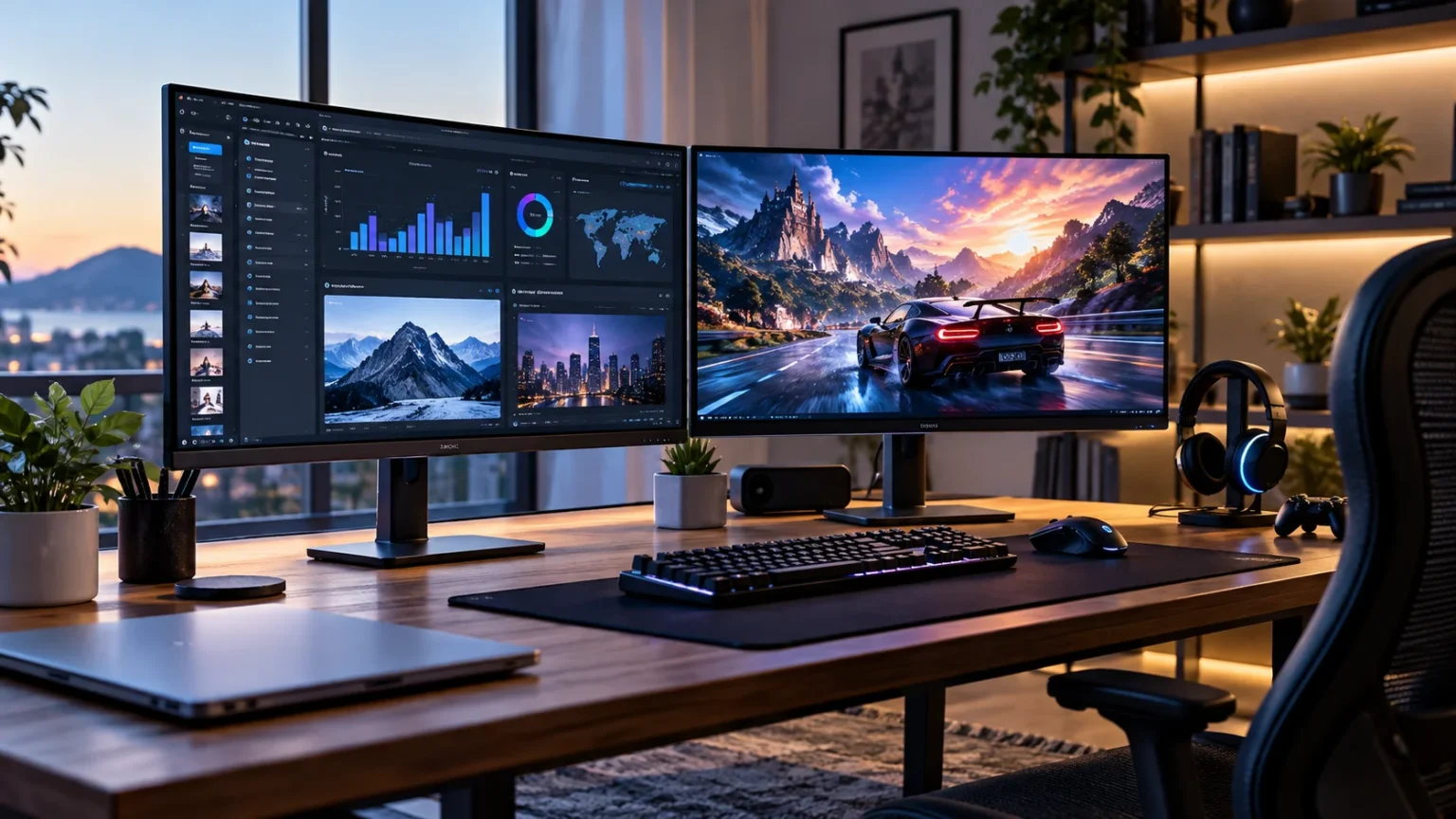

Choosing the best monitors for work and gaming means finding a display that can handle spreadsheets and video calls during the day while delivering smooth, responsive gameplay after work. Resolution, refresh rate, panel technology, response time, color accuracy, and connectivity all affect how useful a monitor feels. A balanced display can eliminate the need for separate work and gaming screens.
The right monitor also depends on what type of work you do and which games you play. A graphic designer may prioritize color accuracy and 4K resolution, while a competitive gamer may care more about refresh rate and low input lag. Someone doing both needs a screen capable of switching comfortably between productivity and entertainment.
Fortunately, modern monitors increasingly combine these qualities in one package. High-refresh 1440p and 4K displays are now available with sharp text, excellent colors, adaptive sync, fast response times, and useful connectivity. Understanding which specifications actually matter will help you choose a monitor that fits both your desk and daily routine.
What Makes a Monitor Good for Work and Gaming?
A good work-and-gaming monitor needs enough resolution to make text and applications look sharp while providing the speed required for responsive gameplay. For many people, 1440p provides an excellent balance between image quality and gaming performance. Moving to 4K delivers even greater detail, although it requires stronger graphics hardware when playing demanding games at high settings.
Refresh rate is another important consideration because it determines how frequently the monitor can update the image. A 144Hz or 165Hz display feels noticeably smoother than a traditional 60Hz office monitor when scrolling, moving windows, or gaming. Competitive players may prefer 240Hz or higher, although those refresh rates are less important for ordinary productivity tasks.
Color quality and ergonomics should not be forgotten. A monitor used for eight hours of work needs comfortable viewing angles, readable text, appropriate brightness, and a stand that supports useful adjustments. Combining these everyday features with low input lag and adaptive synchronization creates a display that works well across professional and recreational activities.
1440p Monitors for the Best Overall Balance
A 1440p monitor is one of the most practical choices for users who divide their time between work and gaming. The 2560 × 1440 resolution provides noticeably more workspace than 1080p without placing the same gaming demand on your graphics card as 4K. Documents, browser windows, timelines, and games can all look detailed on a suitable panel.
A 27-inch 1440p screen is particularly popular because the combination provides good pixel density without requiring aggressive display scaling. Text generally appears sharp, while the extra resolution gives you enough room to place applications side by side. Gamers also have a better chance of reaching high frame rates at 1440p than at native 4K resolution.
Look for a refresh rate of at least 144Hz if gaming is important to you. A 165Hz or 180Hz model can provide additional smoothness without entering the premium pricing associated with extremely high-refresh displays. For most mixed-use buyers, a good 27-inch 1440p IPS monitor remains one of the safest and most versatile choices.
4K Monitors for Productivity and Detailed Gaming
A 4K monitor provides 3840 × 2160 pixels, giving you substantially more detail than 1080p or 1440p. This resolution is particularly useful for editing high-resolution photographs, working with detailed spreadsheets, watching 4K video, or fitting multiple application windows on screen. Text can also appear exceptionally crisp when appropriate operating-system scaling is used.
Gaming at 4K can look impressive because environments, textures, and fine visual details are displayed with greater clarity. However, native 4K gaming requires considerably more graphics processing power than lower resolutions. Gamers with mid-range hardware may need to reduce settings or use technologies such as resolution upscaling to maintain consistently smooth frame rates.
For combined productivity and gaming, a 32-inch 4K display can be especially comfortable. The larger physical screen makes the high resolution easier to appreciate while providing plenty of room for multitasking. A 144Hz or faster refresh rate makes the monitor more versatile than a basic 60Hz 4K office display.
OLED Monitors for Premium Picture Quality
OLED monitors deliver excellent contrast because individual pixels can switch themselves completely off. Dark scenes can therefore appear genuinely black instead of dark gray, helping games, films, and creative content look more immersive. OLED panels also offer extremely fast pixel response, making them attractive to gamers who care about clear motion and minimal ghosting.
Color reproduction can also be impressive, especially on premium OLED and QD-OLED gaming displays. Rich colors and strong HDR performance can make visually demanding games look outstanding while also benefiting photography, video editing, and entertainment. Fast 240Hz OLED models can combine impressive image quality with the responsiveness expected from a serious gaming monitor.
The main consideration for work-heavy users is the possibility of permanent image retention after prolonged exposure to static elements. Taskbars, menus, and application interfaces can remain in the same positions for hours. Modern protective features reduce the risk, but people doing mostly static productivity work may still prefer IPS or Mini-LED alternatives for additional peace of mind.
IPS Monitors for Reliable Everyday Use
IPS panels remain a strong choice for people seeking a reliable monitor for both professional tasks and gaming. They typically provide wide viewing angles and consistent color reproduction, which helps when editing content or sharing your screen with someone nearby. Modern fast IPS panels can also provide response times suitable for demanding gaming.
Another advantage is that IPS monitors are available across an enormous range of prices, resolutions, and refresh rates. You can find affordable 1080p productivity displays, balanced 1440p gaming models, and premium 4K screens with high refresh rates. This variety makes it relatively easy to find an IPS monitor matching your budget and graphics hardware.
Traditional IPS panels generally cannot reproduce the deep black levels of OLED, particularly in dark rooms. However, they do not have the same burn-in concerns associated with self-emissive panels. For someone spending long workdays with static applications before gaming in the evening, a high-refresh IPS monitor remains an excellent practical option.
Ultrawide Monitors for Multitasking and Immersive Gaming
Ultrawide monitors provide additional horizontal screen space, commonly using a 21:9 aspect ratio instead of the traditional 16:9 format. This extra width can replace a dual-monitor arrangement for many users. Spreadsheets, communication apps, browser windows, editing timelines, and documents can be arranged side by side without a bezel separating the workspace.
Gaming can also become more immersive because supported titles provide a wider field of view. Racing games, simulators, adventure games, and expansive single-player experiences particularly benefit from the wider presentation. However, not every game supports ultrawide resolutions perfectly, so black bars or interface limitations may occasionally appear.
A 34-inch 3440 × 1440 ultrawide monitor offers a strong balance between workspace and GPU requirements. Larger 38-inch and 49-inch models provide even more room but require substantial desk space. Before choosing an ultrawide, measure your setup carefully and confirm that your most frequently used applications and games work comfortably at wider aspect ratios.
Refresh Rate and Response Time Explained
Refresh rate is measured in hertz and describes how many times a monitor can update its image every second. A 60Hz display updates up to 60 times per second, while a 144Hz monitor can update up to 144 times. Higher refresh rates make mouse movement, animations, scrolling, and fast gameplay appear smoother when the computer produces enough frames.
For mixed work and gaming, 144Hz is an excellent starting point. Moving to 165Hz or 180Hz provides a little more responsiveness, while 240Hz and higher primarily benefit competitive players pursuing extremely high frame rates. Faster refresh rates will not automatically improve image quality, so they should be balanced against resolution, panel quality, and budget.
Response time measures how quickly pixels transition between colors. Slow transitions can create visible trails or blur behind fast-moving objects, making gaming feel less clear. Manufacturer response-time claims should be treated cautiously because testing methods vary, but modern gaming-focused IPS and OLED displays generally provide significantly better motion handling than basic office monitors.
Adaptive Sync for Smoother Gaming
Adaptive synchronization helps the monitor’s refresh rate follow the frame rate produced by your graphics card. Without synchronization, changes in frame timing can create visible screen tearing, where different sections of an image appear misaligned. Variable refresh rate technologies can make gameplay feel smoother even when frame rates fluctuate.
AMD FreeSync and NVIDIA G-SYNC are the names most buyers encounter while comparing gaming monitors. Many current monitors can work with variable refresh rate on graphics hardware from multiple manufacturers, although certification levels and supported ranges differ. Checking compatibility with your specific GPU is worthwhile before purchasing a high-refresh gaming display.
Adaptive sync becomes particularly useful in graphically demanding games where maintaining one perfectly stable frame rate is difficult. Instead of requiring the GPU to hit the monitor’s maximum refresh rate continuously, synchronization adapts to changing performance. This can provide smoother movement without forcing you to reduce every graphics setting simply to maintain a fixed target.
Connectivity Matters for Work Setups
Connectivity can determine whether a monitor integrates smoothly with your work and gaming devices. DisplayPort is commonly used for desktop gaming PCs because it supports high resolutions and refresh rates, while HDMI is useful for laptops, consoles, and entertainment devices. Newer HDMI standards can support high-refresh 4K gaming when both the monitor and source device are compatible.
USB-C is particularly convenient for laptop users because supported monitors can carry video, data, and power over one cable. A monitor with sufficient USB-C power delivery can charge a compatible laptop while acting as its display. Built-in USB hubs and KVM switches can further simplify setups involving both a work computer and gaming PC.
Not every connectivity issue comes from the monitor itself. Office and remote-work environments may also involve routers, VPNs, or a proxy server that affects internet access rather than the display connection. Separating network problems from hardware connection issues makes troubleshooting a multi-device workstation much easier.
Screen Size and Resolution Should Work Together
Screen size should be considered alongside resolution rather than evaluated independently. A larger monitor using a low resolution can make individual pixels more noticeable, while a high-resolution display provides greater detail. For most desktop setups, 24-inch 1080p, 27-inch 1440p, and 32-inch 4K combinations provide sensible starting points.
A 27-inch screen fits comfortably on many desks and provides enough space for productivity without dominating the setup. When paired with 1440p resolution, it delivers a strong combination of sharpness and gaming performance. Users who regularly manage large spreadsheets, creative projects, or several windows may prefer the additional workspace available on a 32-inch monitor.
Desk depth also matters because very large monitors can feel overwhelming when positioned too close. An ultrawide or 32-inch display may require a deeper desk or monitor arm to maintain comfortable viewing distance. Measure your available space before buying rather than assuming a larger screen automatically provides a better working and gaming experience.
Color Accuracy, HDR, and Brightness
Color accuracy matters most for photographers, designers, video editors, and anyone producing visual content. A monitor covering a wide percentage of color spaces such as sRGB or DCI-P3 can display a broader range of colors. Factory calibration can also be useful when accurate output matters immediately without requiring specialized calibration equipment.
HDR promises brighter highlights, greater contrast, and a wider range between dark and bright areas, but HDR quality varies enormously between monitors. A basic HDR label does not guarantee an impressive experience. Strong HDR generally requires meaningful brightness, excellent contrast, effective local dimming, or self-emissive technologies such as OLED.
For ordinary office work, extreme brightness is less important than comfortable visibility and good reflection handling. A display that remains readable in a bright room is generally sufficient. If HDR gaming and movies are priorities, however, compare actual panel performance instead of selecting a monitor based solely on HDR branding printed on the box.
Ergonomics for Long Work and Gaming Sessions
A monitor used for several hours every day should allow comfortable positioning. Height adjustment is particularly useful because the top portion of the display should generally sit around a comfortable eye level. Tilt, swivel, and pivot adjustments can further help you position the screen appropriately based on your chair, desk, and working posture.
VESA mounting support is useful if the included stand offers limited adjustments or occupies too much desk space. A monitor arm can create additional room for keyboards, speakers, notebooks, and other accessories. It can also make it easier to reposition the screen when switching between focused office work and a more relaxed gaming setup.
Eye comfort features may also matter during extended use. Anti-glare coatings, flicker-reduction technologies, appropriate room lighting, and sensible brightness settings can make long sessions more comfortable. Remember to take regular visual and movement breaks rather than assuming a particular monitor feature can completely eliminate discomfort associated with spending many hours at a desk.
How to Choose the Best Monitor for Work and Gaming
Begin by identifying the applications and games you use most frequently. If productivity is the priority with occasional gaming, a 27-inch 1440p IPS monitor with a high refresh rate can provide excellent versatility. Users who value maximum detail for creative work and cinematic gaming may benefit more from a 32-inch 4K display.
Consider your graphics hardware before choosing extremely demanding resolutions and refresh rates. A monitor may support 4K at a very high refresh rate, but your computer still needs enough graphics performance to take advantage of it. Buying a balanced monitor and GPU combination usually provides better results than paying for specifications your system rarely reaches.
Finally, evaluate practical features including ports, USB-C charging, stand adjustments, KVM functionality, adaptive sync, warranty coverage, and desk compatibility. These details affect daily satisfaction just as much as headline specifications. The best monitor is ultimately one that fits comfortably into both your working routine and preferred style of gaming.
Conclusion
The best monitors for work and gaming successfully combine productivity-focused image quality with gaming-focused responsiveness. For many users, a 27-inch 1440p high-refresh IPS display provides the strongest overall balance. Those seeking greater detail can move toward 4K, while OLED buyers gain exceptional contrast, motion clarity, and premium gaming visuals.
Think beyond refresh rate when comparing monitors. Resolution, panel technology, color accuracy, connectivity, adaptive sync, ergonomics, screen size, and your graphics hardware all determine how satisfying the display will be. A monitor that looks impressive on a specification sheet may still be inconvenient if it lacks the ports or adjustments your daily setup requires.
Choose according to how you actually divide your time between professional tasks and gaming. A balanced display can remain useful through several computer upgrades, making it one of the longer-lasting parts of a desktop setup. Investing in the right combination of clarity, speed, comfort, and connectivity can improve both productivity and entertainment.
FAQs
Is 1440p or 4K better for work and gaming?
1440p offers an excellent balance between sharp productivity visuals and manageable gaming performance. 4K provides greater detail and workspace but requires more graphics power when playing demanding games at native resolution.
Is 144Hz enough for gaming and office work?
Yes. A 144Hz monitor provides very smooth everyday navigation and responsive gaming compared with 60Hz displays. Higher refresh rates are mainly valuable for competitive players who can consistently generate extremely high frame rates.
Is OLED good for both work and gaming?
OLED offers excellent contrast, fast response times, and impressive gaming visuals. However, users displaying static work interfaces for many hours should consider burn-in risk and compare OLED protection features with IPS alternatives.
What monitor size is best for work and gaming?
A 27-inch 1440p monitor works well for many mixed-use setups, while 32-inch 4K models provide greater workspace and detail. Your desk depth, viewing distance, resolution, and available space should guide the decision.
Do I need HDMI 2.1 for a gaming monitor?
Not everyone needs HDMI 2.1, but it is valuable for high-refresh 4K gaming and modern consoles. PC users may alternatively rely on DisplayPort, depending on the capabilities of their graphics card and monitor.