
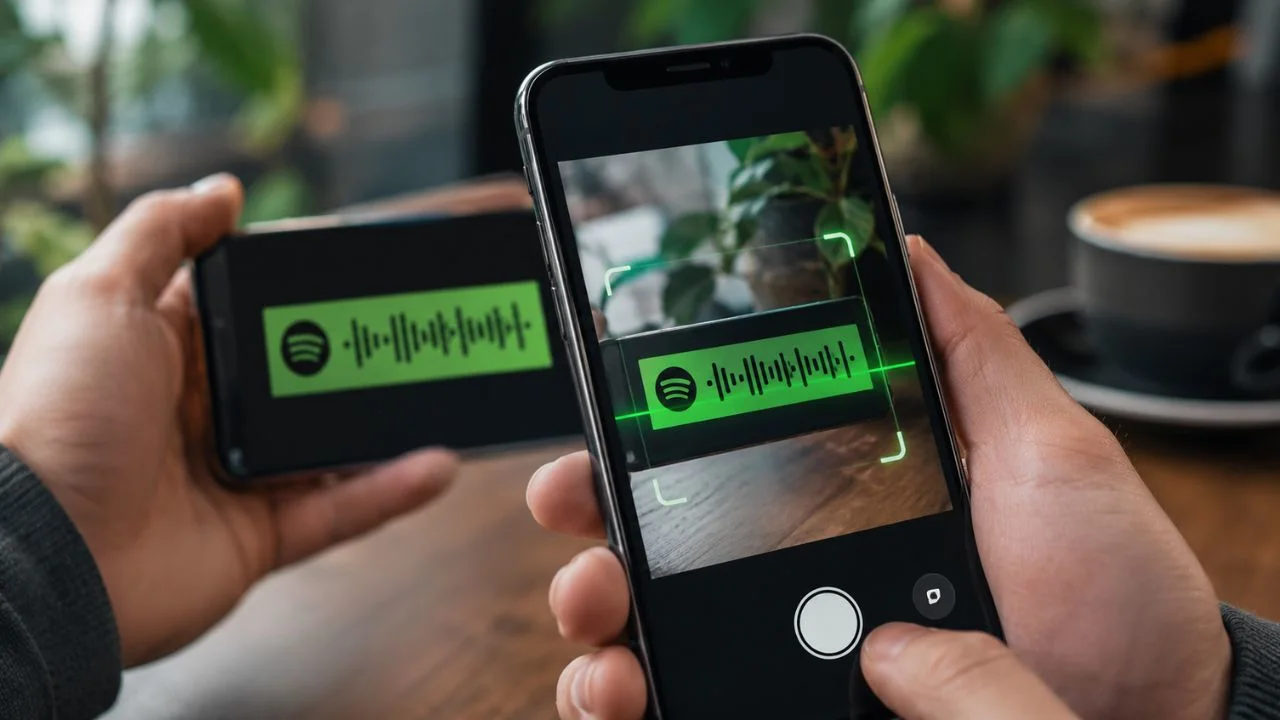

How to Scan a Spotify Code on iPhone and Android
Spotify Codes offer a quick way to open music without typing a song title, artist name, or playlist into the search bar. They look like a row of sound waves beneath an image and work as scannable shortcuts to content inside Spotify. One scan can take you directly to a track, album, podcast, artist profile, or playlist.
Learning how to scan a Spotify Code is simple, but the scanner is not always where new users expect to find it. Rather than opening the standard camera app on your phone, you normally access the scanner through Spotify’s Search section. The app then reads the code and opens the linked content automatically.
You can scan a Spotify Code displayed on another phone, printed on a poster, shown on a computer screen, or shared as an image. Some app versions also allow you to choose a saved screenshot from your photo library. This makes Spotify Codes useful for both in-person and online sharing.
This guide explains how to scan a Spotify Code on iPhone and Android, how to scan one from a screenshot, and what to do when a code will not work. You will also learn how to create your own Spotify Code and share music more effectively with friends, followers, or customers.
What Is a Spotify Code?
A Spotify Code is a unique scannable image connected to content available on Spotify. It usually appears below the artwork for a song, album, artist, podcast, playlist, or profile. The code contains a series of bars in different heights that resemble a music waveform.
Spotify Codes serve a similar purpose to QR codes, but they are designed specifically for Spotify. When the code is scanned through the Spotify app, the user is taken directly to the linked page. This removes the need to search manually or copy and paste a long web address.
You may see Spotify Codes on social media posts, event flyers, restaurant menus, business cards, album packaging, merchandise, or another person’s phone. Artists and podcast creators often use them to help audiences reach their content with fewer steps.
The code itself does not play music outside Spotify. The person scanning it normally needs the Spotify mobile app, an internet connection, and access to the linked content. Some playback features may also depend on the listener’s account type and location.
How to Scan a Spotify Code: Quick Steps
Open the Spotify app on your iPhone, Android phone, or supported tablet. Sign in to the account you want to use, then tap the Search icon near the bottom of the screen. This opens Spotify’s main search area for artists, songs, playlists, and other content.
Tap inside the search bar at the top of the page. A small camera icon should appear beside or within the search field. Select that icon to open the Spotify Code scanner, and allow camera access when your device asks for permission.
Tap Scan if the app displays an introduction or scanning prompt. Hold your phone so the entire Spotify Code appears clearly inside the camera view. Keep the device steady and allow the scanner a moment to recognise the pattern.
Once the code is recognised, Spotify automatically opens the linked song, playlist, album, podcast, artist, or profile. Check the title and creator before playing or following it, particularly when you scanned a code from an unfamiliar advertisement or public location.
How to Scan a Spotify Code on iPhone
Open Spotify on your iPhone and tap Search at the bottom of the app. Tap the search box at the top, then choose the camera icon. The first time you use this tool, Spotify may ask for permission to access your iPhone camera.
Select Allow when the iOS permission message appears. If you previously refused access, open the iPhone Settings app, scroll to Spotify, and turn on the camera permission. Return to Spotify and reopen the scanning screen after changing the setting.
Place the Spotify Code in front of the rear camera. Make sure the full waveform and surrounding artwork are visible, and avoid holding the phone too close. The scanner should recognise the code and open the associated Spotify page automatically.
When scanning a code shown on another device, increase that screen’s brightness and remove glare where possible. If the code is on paper, use good lighting and flatten any folds. A clear, straight view normally produces a faster result than scanning from an angle.
How to Scan a Spotify Code on Android
Launch the Spotify app on your Android device and select Search from the navigation bar. Tap the search field and look for the camera symbol. Select it to enter the Spotify Code scanner and follow any instructions shown on the screen.
Android may request permission for Spotify to use the camera. Choose the option that allows access while using the app. If you denied the permission earlier, open your phone’s settings, locate Spotify under Apps, and enable camera access in the Permissions section.
Point the rear camera at the Spotify Code and keep the entire design within the scanning area. Move slightly farther away if the image appears blurry. Spotify should identify the code within a few moments and display the linked content.
Menu names can differ slightly between Android manufacturers and software versions. However, the scanner remains connected to the Search area inside Spotify. Updating the app through the Google Play Store may help if the camera icon does not appear.
How to Scan a Spotify Code From a Screenshot
First, save the Spotify Code image to your phone. You might receive it through WhatsApp, Instagram, email, or another messaging service. Make sure the downloaded image includes the complete code and has not been compressed, blurred, or heavily cropped.
Open Spotify, go to Search, tap the search bar, and select the camera icon. On app versions that display a photo or gallery option, choose it and allow Spotify to access your selected images. Find the screenshot containing the Spotify Code and open it.
Position or crop the image so the complete code is clearly visible. Avoid cutting away the top of the bars or the Spotify logo beneath them. The app should process the image and take you to the content connected with that code.
If your version of Spotify does not show an option for selecting a photo, display the screenshot on another phone, tablet, or computer and scan it with your device. You can also ask the sender for a normal Spotify link as a simple alternative.
Can You Scan a Spotify Code With Your Phone Camera?
A Spotify Code is not exactly the same as a standard QR code. Your phone’s normal camera or built-in QR scanner may not recognise the waveform design correctly. The most reliable method is to use the scanner located inside the Spotify mobile app.
Open Spotify before pointing your camera at the code. Go through Search, tap the search field, and choose the camera icon. This ensures that the app uses the correct technology to identify the Spotify-specific pattern and open the intended content.
Some third-party scanning tools may claim to read Spotify Codes, but they are unnecessary and may not work reliably. Installing an unfamiliar scanner can also introduce privacy concerns, excessive advertising, or requests for permissions that are not needed.
When a regular camera does not respond to a Spotify Code, it does not mean the code is broken. Move to Spotify’s built-in scanner and try again. If it still fails, inspect the image quality, lighting, app version, and camera permission.
Can You Scan a Spotify Code on a Computer?
Spotify’s code scanner is primarily available through the mobile and tablet app. The desktop application and web player do not normally provide the same camera-scanning tool. You therefore need a phone or tablet to scan a Spotify Code displayed on a computer.
Open the code on your computer screen and increase its size until the waveform is clear. Then open Spotify’s scanner on your phone and point the camera towards the monitor. Reduce reflections and adjust the screen angle when glare prevents the code from being recognised.
You can also send the code image to your phone and select it from the photo library when that option is available. Another solution is to obtain the normal Spotify sharing link and open it directly in the desktop application or browser.
Although a computer cannot normally scan the code itself, it can help you create and display high-resolution Spotify Codes. Artists, brands, and content creators often generate codes on a computer before adding them to posters, websites, packaging, or promotional materials.
How to Scan a Spotify Playlist Code
A playlist code takes you directly to the playlist page rather than searching for its name. Open Spotify’s scanner through the Search section and point it at the code shown beneath the playlist cover. Keep the image still until Spotify recognises it.
After the playlist opens, check its name, owner, description, and track list. You can then play it, save it to Your Library, follow updates, or share it with someone else. Playback behaviour may depend on whether you use a free or Premium Spotify account.
Playlist codes can be especially helpful when several playlists have similar names. The scanner opens the exact playlist associated with the code, reducing the chance of selecting an imitation or unrelated search result.
If the playlist does not open, it may have been deleted, made unavailable, or restricted. The owner may also have changed how the playlist is shared. Ask for a fresh code or direct link when an older image no longer works.
How to Scan a Code for a Song or Album
Scanning a song code opens the track’s Spotify page or begins displaying the relevant song information. This can save time when the title is difficult to spell, written in another language, or shared through printed promotional material.
Use the Spotify scanner in the same way as you would for a playlist. Open Search, tap the camera icon, and hold the code within view. Once recognised, confirm that the song title and artist match what you expected.
An album code normally opens the full album page. From there, you can listen to individual tracks, save the release, view the artist profile, or share the album. This is useful for musicians promoting new releases at concerts or in physical shops.
A code may stop working as expected if the original song or album becomes unavailable in your country. Spotify’s music catalogue can vary by region and licensing agreement. Search for the artist manually when the scanner opens an unavailable page.
How to Scan a Spotify Podcast Code
Podcast creators may place Spotify Codes on websites, social media graphics, business cards, or event materials. Scanning the code can open the overall show or a specific episode, depending on the content used to create it.
Open Spotify’s Search page and access the scanner through the camera icon. Point it towards the podcast code and wait for the app to open the linked page. Confirm the show title and publisher before following or downloading episodes.
When the code links to one episode, you can listen immediately or save it for later. If it opens the show page, browse the available episodes and select the one you need. The code creator determines which destination is connected.
Podcast codes work well for titles that are long, similar to other shows, or difficult to remember. They can also reduce the steps between seeing a promotion and becoming a listener, which makes them useful for podcast marketing.
How to Scan a Spotify Profile Code
Every Spotify profile can have a scannable code, allowing people to find an account without entering its username. This is helpful because Spotify display names are not always unique and may be shared by many different users.
Ask the person to open their profile and display the code beneath their profile details. Open the scanner on your own device and point it at their screen. Spotify should take you directly to the correct account.
After the profile opens, review the display name and public playlists before following it. This confirms that you scanned the intended person rather than another account with a similar identity.
Profile codes can also be shared as screenshots, added to creator pages, or printed on promotional materials. Users should remember that anything placed publicly may be scanned by anyone who sees it.
How to Find a Spotify Code for Any Content
Open the Spotify app and navigate to the song, album, playlist, podcast, artist, or profile you want to share. Tap the three-dot menu associated with that item. The exact location of the menu may vary according to the type of content.
Look beneath the artwork or sharing options for the Spotify Code. It usually appears as a waveform below the content image. Keep this screen open while another person scans it with their phone.
You can also take a screenshot of the code and send it through a messaging or social media app. Avoid placing stickers, text, filters, or other graphics over the waveform because they may prevent the scanner from reading it accurately.
For a simple online conversation, sharing the normal Spotify link may be more convenient than sending a code. Codes are most useful when someone can scan them visually, particularly from printed materials, another screen, or a public display.
How to Create a Spotify Code for a Playlist
Begin by opening the playlist in Spotify and tapping the three-dot menu. Locate the code displayed beneath the playlist image and take a clear screenshot. Crop away unnecessary screen elements while keeping the complete code and playlist artwork intact.
You can share this screenshot directly with friends or post it online. People can scan it through the Spotify mobile app to open the playlist. Test the final image on another phone before publishing it widely.
For printed marketing material, use a higher-resolution version rather than enlarging a small screenshot. A low-quality image may look acceptable on your screen but become blurry when printed on a flyer, poster, menu, or card.
Keep sufficient space around the code and maintain strong contrast. Do not stretch, rotate, reshape, or cover the waveform. A clean design makes the code easier to scan and gives people a clearer indication that it connects to Spotify.
How to Generate a High-Resolution Spotify Code
A high-resolution code is useful when you need to print or professionally design promotional material. Start by copying the Spotify link or URI for the song, album, playlist, artist, or podcast you want to promote.
Enter the Spotify address into the official Spotify Codes generator. The tool can create a downloadable version with options for background colour, bar colour, size, and file format. Choose settings that keep the waveform easy to recognise.
Download the code in a format appropriate for its intended use. A larger image or scalable format is normally better for printing, while a standard image may be sufficient for social media or email.
Always scan the downloaded file before adding it to a final design. Test the finished poster or graphic again after resizing and exporting it. Design software, image compression, and printing can sometimes reduce readability.
Why Is My Spotify Code Not Scanning?
A blurry, pixelated, or incomplete image is one of the most common reasons a Spotify Code will not scan. The app must see the complete waveform clearly. Ask for the original image rather than scanning a screenshot that has been repeatedly forwarded or compressed.
Poor lighting can also cause problems. Reflections from a glossy screen, shadows on printed paper, and a dark camera view may hide part of the code. Increase the screen brightness or move to an evenly lit area before trying again.
The code may be too close, too far away, or held at a steep angle. Move your phone slowly until the entire image is in focus. Keep both the code and camera steady for a moment instead of moving continuously.
Technical issues may also be responsible. Check your internet connection, update Spotify, confirm camera permission, and restart the app. When other codes work but one specific code fails, the original content or image is probably the issue.
What to Do When the Camera Icon Is Missing
First, confirm that you are using the Spotify mobile or tablet app rather than the desktop app or web player. The scanning feature is associated with the mobile experience, so it may not appear on a computer.
Go to the Search tab and tap directly inside the search bar. The camera icon may not be visible until the search field becomes active. Look carefully around the right side of the search area.
Update Spotify through the App Store or Google Play Store when the icon remains missing. An older app version may use a different layout or fail to display current features correctly. Restart the phone after installing the update when necessary.
You can also sign out and sign in again or reinstall Spotify after confirming that you know your login information. If the feature remains unavailable, use a direct Spotify link or try scanning from another supported mobile device.
How to Fix Spotify Camera Permission Problems
On an iPhone, open Settings, find Spotify in the app list, and allow camera access. You may also locate camera permissions through the Privacy and Security settings. Reopen Spotify after making the change.
On Android, open Settings, choose Apps, select Spotify, and enter Permissions. Set Camera access to allow while using the app. The wording can differ between Samsung, Google Pixel, Xiaomi, and other devices.
If the permission is already active, turn it off, close Spotify, and enable it again. Restarting the phone can also clear a temporary camera conflict. Make sure another app is not currently using or blocking the camera.
Workplace, school, or parental-control settings may restrict camera access. In that situation, you may need permission from the device administrator. A direct Spotify link remains the simplest alternative when the scanner cannot access the camera.
Tips for Scanning a Code Successfully
Keep the full Spotify Code visible, including every bar in the waveform. Cropping too tightly can remove important information. Leave a small amount of clear space around the design whenever you create or share an image.
Use bright, even lighting, but avoid direct reflections. When scanning another phone, clean both screens and increase the brightness of the device showing the code. A cracked screen or privacy filter may also make scanning more difficult.
Hold the camera parallel to the code rather than approaching it from the side. Begin from a moderate distance and move gradually closer until the image becomes sharp. Avoid digital zoom because it can reduce image quality.
Test printed Spotify Codes at the actual size in which people will see them. A code that works on a large computer display may become unreadable when printed very small. Testing prevents wasted posters, labels, packaging, and promotional materials.
Are Spotify Codes Safe to Scan?
A Spotify Code is designed to direct you to content within Spotify. However, it is still sensible to check the page that opens, particularly when the code appears in an unfamiliar public place or online advertisement.
Confirm the artist, playlist owner, podcast publisher, or profile before following or sharing the content. A code can be connected to a misleadingly named playlist or account, just as an ordinary link can lead to content you did not expect.
You should never be asked to enter a password, banking information, or verification code simply to scan a Spotify Code. If another page or person requests sensitive information, leave it and access Spotify through the official app.
Keep your Spotify app updated and use its built-in scanner instead of unknown third-party tools. This reduces unnecessary permissions and ensures that the code is processed through the service it was created for.
Spotify Code vs QR Code: What Is the Difference?
A QR code is a general-purpose square pattern that can contain a website address, contact details, payment information, or other data. Most modern phone cameras can scan QR codes without opening a separate app.
A Spotify Code uses a branded waveform design and is built specifically for Spotify content. It is normally scanned from the camera tool inside Spotify rather than through the standard QR reader on your phone.
QR codes may lead to almost any website, while Spotify Codes direct users towards a Spotify destination. This makes Spotify Codes visually distinctive and useful for music, podcast, artist, and playlist promotion.
A creator can choose either format depending on the audience. Spotify Codes create a recognisable music-focused experience, while QR codes may be more accessible to people who do not know where Spotify’s scanner is located.
Best Ways to Use Spotify Codes
Music lovers can use codes to exchange playlists quickly at parties, in cars, or during conversations. Instead of spelling out a playlist name, one person displays the code and the other scans it.
Artists can place codes on concert posters, merchandise, business cards, and album packaging. A code can take fans directly to a new single or artist profile without requiring them to remember a release title.
Businesses can connect customers with background playlists, branded podcast episodes, or music collections. Cafés, gyms, shops, and event organisers may display codes where visitors can scan them easily.
Teachers and students can also use Spotify Codes for educational playlists, language practice, audio examples, or class podcasts. The code should always be tested and accompanied by a brief instruction such as “Scan using the Spotify app.”
Common Spotify Code Mistakes to Avoid
Do not assume that everyone will know how to scan the waveform. When publishing a code, add a simple instruction explaining that users should open Search in Spotify and tap the camera icon.
Avoid editing the bars, changing their proportions, or placing a logo over them. Decorative changes may make the design attractive but prevent the scanner from identifying the underlying pattern.
Do not print a small screenshot at a much larger size. Enlarging a low-resolution image creates visible pixels and blurred edges. Generate a high-quality code when designing posters, packaging, or professional campaigns.
Finally, do not rely only on the code for important promotions. Include the artist, playlist, or podcast name and consider adding a normal link online. These alternatives help people who cannot use the scanner or do not have Spotify installed.
Final Thoughts on Scanning Spotify Codes
To scan a Spotify Code, open the mobile app, tap Search, select the search bar, and choose the camera icon. Allow camera permission, tap Scan, and hold the code clearly within the camera view.
The scanner works with codes displayed on another phone, computer, printed item, or compatible saved image. When scanning a screenshot is unavailable, show the picture on a second device or ask the sender for a normal Spotify link.
Most scanning problems come from blurry images, poor lighting, missing camera permission, or an outdated app. Keeping the complete code visible and testing it at a clear size usually solves the problem.
Spotify Codes provide a fast and visually recognisable way to share music, podcasts, playlists, artists, and profiles. Once you know where the scanner is located, opening shared content takes only a few seconds.
Frequently Asked Questions
Where is the Spotify Code scanner?
Open Spotify and tap Search at the bottom. Tap inside the search bar, select the camera icon, and choose Scan to open the Spotify Code scanner.
Can I scan a Spotify Code from a screenshot?
Yes, when your app version displays a photo-library option inside the scanner. Otherwise, show the screenshot on another device and scan it with your phone.
Can I scan a Spotify Code without Premium?
You generally do not need Spotify Premium to scan a code. The content will open according to the playback features available with your Spotify account.
Why is my Spotify Code not working?
The code may be blurry, cropped, too small, poorly lit, or linked to unavailable content. Update Spotify, enable camera access, and try a clearer version.
Can the normal iPhone or Android camera scan Spotify Codes?
A standard camera may not recognise Spotify’s waveform-style codes. Use the camera scanner inside the Spotify mobile app for the most reliable result.