
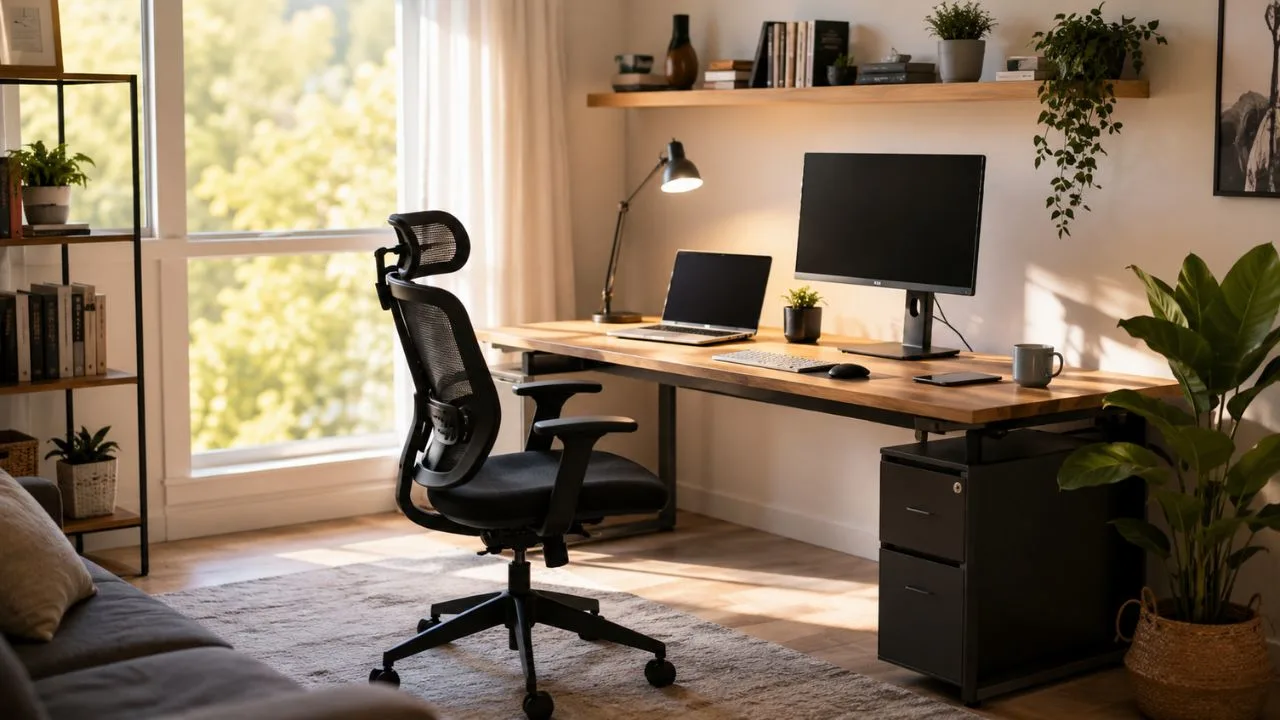

Learning how to set up a home office is about more than placing a laptop on a spare table. A successful workspace should support concentration, physical comfort, video meetings, storage, and the practical demands of your daily job. It should also fit naturally into your home without making the surrounding space feel like a permanent corporate cubicle.
The ideal home office will look different for every person. A full-time remote employee may need multiple monitors and private storage, while a freelancer might prefer a flexible creative studio. Someone working in a small apartment may only have an unused corner, but thoughtful furniture placement and a few ergonomic adjustments can still turn that limited area into a functional workspace.
Comfort should remain a priority because even an attractive office can become difficult to use when the desk is too high, the chair provides little support, or the screen encourages an awkward posture. OSHA explains that there is no single workstation arrangement that suits everyone, but basic ergonomic design principles can create a safer and more comfortable computer setup.
The best approach is to build your work-from-home office in stages. Begin with the location, desk, chair, and computer position before purchasing shelves or decorative accessories. Once the foundation works well, you can improve lighting, technology, organization, acoustics, and visual style without wasting money on items that do not solve your actual needs.
Define What Your Home Office Needs to Accomplish
Start by listing the tasks you perform during a normal working day. Consider whether you mainly write, attend video meetings, create artwork, manage paperwork, edit videos, speak with clients, or use specialized equipment. The activities you perform most often should determine the desk size, storage type, technology, lighting, and degree of privacy your office requires.
Think about how many hours you will spend in the workspace. A temporary desk for occasional emails can remain relatively simple, while a full-time remote work setup deserves a supportive chair, external monitor, proper keyboard, and reliable internet connection. Spending priorities become clearer when you separate essential daily equipment from accessories that are mainly decorative.
You should also identify the people who may share or pass through the room. Children, partners, housemates, clients, and pets can influence where equipment is placed and how sensitive documents are stored. A shared home office may require separate work zones, headphones, movable dividers, or a schedule that helps everyone use the room without constant interruption.
Finally, set a realistic home office budget before shopping. Divide it into essential furniture, technology, lighting, organization, and decoration. This prevents attractive but unnecessary purchases from consuming funds that would be better spent on a comfortable chair, an external monitor, or another improvement that directly affects your workday.
Choose the Best Location in Your Home
The best home office location is one that supports concentration while remaining practical for your household. A spare bedroom may provide privacy, but an alcove, landing, dining room corner, closet, or unused section of the living room can also work. You do not necessarily need an entire room to create an effective dedicated workspace.
Observe each possible location at the times when you normally work. Notice household traffic, street noise, sunlight, temperature, electrical outlets, and Wi-Fi strength. A corner that appears peaceful in the evening may become noisy during the day, while a bright window may create distracting screen glare during your busiest working hours.
Whenever possible, avoid using the bed or sofa as your primary workstation. Soft seating may feel comfortable for a short time, but it rarely supports a stable screen, neutral wrist position, or consistent posture. A defined desk area also creates a clearer psychological boundary between working, relaxing, eating, and sleeping.
When space is limited, use visual separation to make the office feel intentional. A rug, wall color, narrow bookcase, folding screen, curtain, or strategically placed plant can define the work zone. Even positioning the desk so that you face away from the rest of the room can reduce visual distraction and create a stronger sense of focus.
Select a Desk That Fits Your Work and Body
Choose a desk according to your equipment rather than selecting one based only on appearance. Measure the width of your monitor, keyboard, laptop, notebook, speakers, and any tools you use regularly. The work surface should provide enough room to keep essential objects within comfortable reach without leaving the desk permanently overcrowded.
The desk should also allow sufficient clearance underneath for your knees, legs, and feet. Drawers, thick supports, and crossbars can restrict movement even when the desktop appears spacious. OSHA notes that a well-designed desk should offer adequate leg clearance and allow computer components to be positioned without encouraging awkward postures or excessive reaching.
A standard desk may be suitable when it works with your chair and body proportions. Adjustable standing desks offer additional flexibility, but they are not essential for every home office. A desk converter can provide a more affordable alternative when you want to alternate between sitting and standing without replacing the entire work surface.
For a small home office, consider a wall-mounted desk, compact writing desk, corner desk, or narrow console with enough depth for your equipment. Folding desks are useful when the space must serve another purpose after work. Whatever style you choose, prioritize stability because a desk that shakes while typing can quickly become frustrating.
Invest in a Supportive and Adjustable Office Chair
Your office chair is one of the most important parts of an ergonomic home office setup. Look for adjustable seat height, lower-back support, a stable base, and a seat that allows you to sit comfortably without pressure behind your knees. Armrests can be useful when they support the arms without forcing the shoulders upward.
Adjust the chair so your feet rest securely on the floor and your thighs remain comfortably supported. When the desk height requires you to raise the chair, use a stable footrest instead of leaving your feet unsupported. The goal is to create a position in which you can type without lifting your shoulders or bending your wrists sharply.
The backrest should support the natural curve of your lower back while allowing you to sit close enough to the desk. Avoid perching on the front edge of the seat or leaning forward for long periods. An adjustable chair is helpful because it allows small changes as your tasks and working position shift throughout the day.
A chair also needs a base that suits the floor beneath it. OSHA recommends a strong five-legged base and casters appropriate for the workstation flooring. A protective chair mat can improve movement and reduce damage when the office is located on carpet, wood, or another delicate surface.
Position Your Monitor, Laptop, Keyboard, and Mouse Correctly
Place your primary monitor directly in front of your normal seated position. This reduces the need to twist your neck or torso while working. OSHA recommends positioning the screen so your head, neck, and body face forward rather than repeatedly turning toward a monitor placed too far to one side.
The screen should generally sit around an arm’s length away, although monitor size, eyesight, and text size can affect the ideal distance. Adjust the display so you can read comfortably without leaning forward. Increasing font size is often more effective than pulling the monitor too close and compromising your sitting position.
Laptop users face a particular challenge because the keyboard and screen are physically connected. Raising the laptop to a comfortable viewing level usually makes its keyboard too high for extended typing. For regular work, use a laptop stand with an external keyboard and mouse so the screen and input devices can be adjusted independently.
Keep the keyboard and mouse close enough that your elbows remain near your body. Your wrists should stay as straight and neutral as possible rather than bending upward or sideways. OSHA also recommends placing the mouse where it can be used without repeated reaching and without forcing the wrist into an awkward position.
Use Natural Light Without Creating Screen Glare
Natural light can make a home office feel more pleasant, but desk placement matters. Positioning the screen directly in front of a bright window may produce strong backlighting, while placing the window behind you can create reflections. A desk arranged at a right angle to the window often provides useful daylight with less glare.
Use adjustable blinds, curtains, or shades when sunlight changes throughout the day. You should be able to soften direct light without making the room unnecessarily dark. OSHA recommends reorienting workstations so bright windows are at right angles to screens and positioning task lights where they do not create screen reflections.
Add a desk lamp for reading, writing, or detailed work instead of relying entirely on one ceiling fixture. Task lighting allows you to illuminate the work surface without brightly lighting the whole room. The United States Department of Energy recommends focused task lighting as an efficient alternative to using excessive general lighting throughout an office.
Match the brightness of your screen to the surrounding room instead of using maximum brightness by default. Extremely bright screens in dark rooms can feel uncomfortable, while dim displays in strong daylight may encourage squinting. Clean the monitor regularly because dust, fingerprints, and reflections can reduce clarity and make text harder to read.
Build a Reliable Technology Setup
Make a list of the technology your job actually requires before purchasing additional devices. The essentials may include a laptop or desktop computer, monitor, webcam, microphone, headphones, printer, charger, and backup drive. Avoid filling the desk with devices that duplicate functions without making your work faster, clearer, or more dependable.
A reliable internet connection is particularly important for video conferencing, cloud applications, file transfers, and online collaboration. Test the connection from the chosen workspace rather than assuming every part of the home receives the same signal. Moving the router, using a wired Ethernet connection, or adding suitable network equipment may improve consistency.
Secure the home network as carefully as you organize the physical office. Change default router credentials, use a strong and unique Wi-Fi password, install firmware updates, and enable automatic updates when the router supports them. CISA identifies the home router as an important entry point to the network and recommends securing Wi-Fi and keeping devices updated.
Protect important work with a backup plan. Depending on your role, this may include secure cloud storage, an external drive, automatic document syncing, or an uninterruptible power supply. Follow your employer’s requirements for company devices, sensitive files, virtual private networks, passwords, and approved communication platforms.
Organize Cables and Electrical Equipment Safely
Cable management makes a desk easier to clean and helps prevent chargers, power cords, and data cables from becoming tangled. Begin by removing unused wires and labeling similar adapters. Attach frequently used cables beneath the desk or along its rear edge so they remain accessible without spreading across the floor.
Use a cable tray, reusable hook-and-loop ties, clips, sleeves, or a cable box to group wires neatly. Leave enough slack for standing desks and movable monitor arms. Do not bend cables sharply, trap them beneath heavy furniture, or arrange them where chair wheels and foot traffic can damage them.
Place commonly used charging ports within reach so you do not repeatedly crawl under the desk. However, avoid connecting multiple power strips or using extension cords as a permanent substitute for adequate outlets. The Consumer Product Safety Commission warns that unsuitable or damaged extension cords can create electrical shock and fire hazards.
Inspect power cords, plugs, adapters, and outlets periodically for heat, looseness, cracks, or visible damage. Keep drinks away from electrical equipment and avoid covering power strips with rugs or boxes. When the available electrical system cannot support your equipment safely, seek advice from a qualified electrician rather than relying on improvised connections.
Control Noise and Prepare for Video Meetings
Noise can affect concentration even when you believe you have become accustomed to it. Identify whether the main problem comes from traffic, appliances, conversations, children, construction, or echo within the room. Different sources require different solutions, so begin by understanding when and where the interruption occurs.
Soft materials can reduce harsh echoes inside a home office. Rugs, curtains, upholstered furniture, fabric panels, and filled bookshelves help absorb some reflected sound. Door seals and heavier curtains may reduce outside noise, while headphones can be useful when physical changes to the room are not possible.
For video calls, position the camera near eye level so you are not looking sharply upward or downward. Face a window or soft lamp rather than sitting with bright light directly behind you. A simple background with one or two intentional elements usually looks more professional than a wall crowded with unrelated belongings.
Test the microphone, camera, internet connection, and background before an important meeting. Close noisy windows, silence unnecessary notifications, and inform others when you need privacy. A small sign outside the door or an agreed household schedule can prevent avoidable interruptions without making the home feel overly restricted.
Improve Indoor Air and Temperature Comfort
A workspace can become uncomfortable when it feels stuffy, excessively warm, cold, or humid. Pay attention to airflow and temperature during the hours when you actually work. A room that feels comfortable for a brief visit may become unpleasant after several hours of computer use and electronic equipment producing heat.
Open windows when outdoor conditions and local air quality make it appropriate, or use the home’s ventilation system effectively. The EPA explains that inadequate ventilation can allow indoor pollutant levels to increase because there is not enough outdoor air to dilute and remove emissions from indoor sources.
Keep the office clean and reduce obvious sources of dust, strong odors, and moisture. Vacuum soft furnishings, clean vents, and address leaks or visible mold rather than attempting to cover the smell with fragrance. EPA guidance prioritizes controlling pollution sources, providing suitable ventilation, and using filtration when appropriate.
A quiet fan, suitable heater, or additional layer of clothing may improve comfort, but electrical devices should be used according to their safety instructions. Avoid placing heating equipment near paper, curtains, or overloaded power connections. The aim is to maintain a stable environment without introducing new risks or distractions.
Add Storage That Supports Your Workflow
Good home office storage should make frequently used items easy to reach while keeping less important objects out of sight. Begin by separating active work, reference material, supplies, and archived files. This prevents every drawer and shelf from becoming a mixed collection that must be searched whenever you need one document.
Use vertical space when the room has limited floor area. Wall shelves, pegboards, tall bookcases, and cabinets above the desk can provide storage without making the work surface feel crowded. Keep heavier objects lower and install wall-mounted storage with suitable hardware for the wall type and expected weight.
Closed storage is useful for cables, stationery, financial records, and equipment that would otherwise create visual clutter. Open shelves are better for books and attractive objects you use regularly. Combining both types keeps the room practical while preventing it from looking either excessively bare or permanently untidy.
Create a simple end-of-day reset routine. Return supplies to their assigned places, clear cups and papers, and write down the next day’s priorities. A five-minute reset protects the workspace from gradual clutter and makes it easier to begin work without facing yesterday’s unfinished mess.
Design the Office to Encourage Focus
Visual design can influence how easy it feels to settle into work. Choose a limited color palette and repeat it through the walls, furniture, containers, and accessories. Calm neutrals can create a quiet foundation, while controlled accents such as green, blue, rust, or mustard can add personality without overwhelming a small workspace.
Keep the most distracting items outside your direct field of vision. A television, laundry pile, exercise equipment, or busy household area can repeatedly pull attention away from the task. Repositioning the desk may be more effective than buying additional organizers, productivity apps, or decorative office accessories.
Include a small number of objects that make the workspace feel personal. A plant, photograph, artwork, clock, or meaningful book can create warmth without consuming valuable desk space. The goal is to design a room you enjoy entering while ensuring that decoration does not interfere with equipment, lighting, or daily movement.
Separate creative inspiration from active work materials. A pinboard, whiteboard, or wall planner can keep goals and ideas visible, but it should remain organized enough to be useful. When every note is equally prominent, important deadlines may disappear into background clutter rather than helping you stay focused.
Create a Functional Home Office in a Small Space
Small home office ideas work best when each item earns its place. Select a compact desk with enough depth for the computer and choose storage that extends upward instead of outward. A floating shelf above the desk can hold supplies, while a narrow drawer unit can support paperwork without taking over the room.
A closet office, sometimes called a cloffice, can work well when the interior has adequate depth, lighting, ventilation, and access to power. Removing a hanging rail and installing a desk surface can create a hidden workstation. Closing the doors after work helps the room return to its original purpose.
Furniture with multiple functions can also make a limited setup more flexible. A desk may serve as a console after working hours, while a storage ottoman can hold office supplies and provide occasional seating. Choose pieces that convert easily so changing the room from work mode to home mode does not become a daily burden.
Avoid shrinking every object simply because the workspace is small. An extremely narrow desk or miniature chair may not support comfortable work. It is often better to use one properly sized workstation and reduce unnecessary decor than to squeeze several undersized pieces into an area that cannot accommodate them.
Set Up a Home Office on a Budget
Begin with items you already own and improve their arrangement before purchasing new furniture. A stable table may work as a temporary desk, while books or a secure stand can raise a laptop. Move an unused lamp into the workspace and test the setup for several days to identify the problems that actually need money.
Prioritize comfort and function in your spending order. A better chair, external keyboard, mouse, or monitor stand will normally provide more daily value than matching desk accessories. OSHA’s workstation guidance emphasizes that simple and relatively inexpensive adjustments can improve the comfort and safety of computer work.
Shop secondhand for desks, filing cabinets, shelves, and solid office chairs, but inspect each item carefully. Check whether adjustable parts work, the desk remains stable, and the chair provides adequate support. Avoid purchasing used electrical products that appear damaged, lack essential safety information, or cannot be tested properly.
Upgrade gradually instead of trying to complete the entire office in one weekend. Use the space, notice recurring difficulties, and solve them in order of importance. A home office built around real habits will usually perform better than a perfectly coordinated room purchased before you understand how you work within it.
Build Movement and Breaks into Your Workday
Even an ergonomic workstation cannot make remaining in one position all day comfortable. Change your posture, adjust your chair, stand, stretch, and walk periodically. OSHA advises workers to vary their position, make small adjustments, stretch, and stand or move around during the day.
Create natural reasons to leave the desk. Place water in another part of the room, stand during suitable phone calls, or walk briefly between focused work sessions. These small changes can be easier to maintain than relying on one long exercise break after hours of continuous sitting.
Give your eyes regular opportunities to look away from the screen. NIOSH recommends taking screen breaks, reducing glare, adjusting display brightness and contrast, and using the 20-20-20 approach: looking roughly 20 feet away for 20 seconds every 20 minutes.
Pay attention to recurring discomfort rather than treating it as a normal part of remote work. Neck pain, wrist strain, headaches, or eye discomfort may indicate that the equipment, posture, task pattern, or screen settings need adjustment. NIOSH’s updated office-environment guidance also emphasizes avoiding overreaching, prolonged static positions, and awkward postures.
Establish Boundaries Between Work and Home
A home office works better when it has a clear beginning and end to the day. Develop a short starting routine such as switching on the desk lamp, reviewing priorities, and closing unrelated browser tabs. Repeating the same sequence can help signal that focused work is beginning.
Create an equally clear shutdown routine. Save files, write down unfinished tasks, close work applications, and leave the desk in a usable condition. When possible, turn off the monitor, close the office door, or put the laptop away so work does not remain visually present throughout the evening.
Communicate your working hours to the people who share your home. Clear expectations about calls, interruptions, childcare, meals, and shared rooms can prevent repeated frustration. Boundaries should remain practical and flexible, particularly when several people are working or studying from the same home.
Avoid trying to recreate an office building inside your living space. The purpose of a home office is to support your work while respecting the home around it. A well-designed setup should make professional tasks easier without allowing work equipment, notifications, and unfinished projects to take over every room.
Common Home Office Setup Mistakes to Avoid
One common mistake is purchasing furniture before measuring the room and equipment. A desk may block a door, leave no space for the chair, or position the monitor directly in bright sunlight. Measuring first helps you select pieces that support movement, storage, and a comfortable working distance.
Another mistake is working directly from a laptop for long periods without external accessories. Because the keyboard and screen cannot be adjusted separately, users often bend their necks downward or raise their arms to type. A stand, keyboard, and mouse can create a more flexible laptop workstation.
Do not focus entirely on appearance while ignoring lighting, noise, internet quality, and physical comfort. A stylish office will not function well when video calls disconnect, the chair causes discomfort, or direct sunlight makes the screen difficult to see. Practical problems should be solved before decorative finishing touches.
Finally, avoid assuming that the first arrangement must remain permanent. Your tasks, equipment, schedule, and household needs may change. Reassess the workspace every few months and adjust the monitor, chair, storage, lighting, or furniture layout when the current setup no longer supports how you work.
Final Thoughts
Understanding how to set up a home office begins with recognizing your personal work habits. Choose a suitable location, identify your most important tasks, and create enough space for the equipment you use daily. A defined purpose will guide better decisions than copying a workspace designed for someone with different needs.
Build the ergonomic foundation before decorating. Select a stable desk, adjust the chair, position the screen correctly, and keep the keyboard and mouse within comfortable reach. These practical steps will shape your daily experience more than trendy furniture, matching storage boxes, or an elaborate office color scheme.
Next, improve the environment through lighting, organization, dependable technology, controlled noise, and cleaner air. Test each adjustment during real working hours instead of judging it only by appearance. A setup that supports concentration, meetings, paperwork, and movement is more valuable than one designed primarily for photographs.
Your home office does not need to be large or expensive to work well. It needs to be intentional, comfortable, secure, and suited to your routine. By improving the space gradually and responding to genuine problems, you can create a productive home workspace that supports both your career and your life outside work.
Frequently Asked Questions
What do I need for a basic home office setup?
A basic setup requires a stable desk, supportive chair, computer, reliable internet connection, suitable lighting, and nearby power access. An external keyboard, mouse, and monitor can improve comfort when you work for several hours daily.
Where should a desk be placed in a home office?
Place the desk where household traffic and noise are limited. Position the monitor at a right angle to nearby windows when possible so you can benefit from natural light without creating strong screen glare.
How can I make my home office more ergonomic?
Adjust the chair so your feet are supported, keep the monitor directly ahead, and place the keyboard and mouse close to your body. Change position regularly and take short movement and screen breaks throughout the day.
How do I set up a home office in a small room?
Choose a compact but properly sized desk, use wall-mounted storage, and remove unnecessary furniture. A closet, corner, landing, or section of a multipurpose room can become a functional workspace with clear visual separation.
How much should I spend on a home office?
The amount depends on your equipment and working hours. Spend first on comfort, reliable technology, and lighting, then add storage and decoration gradually as you learn what the workspace genuinely needs.